Having the Chair Approve Your Hours
In some organizations, the executive director's hours are approved by the chair of the board of directors rather than by the executive director. Feuille de temps lets the executive director invite their chair to approve their hours: the chair gains nothing more than the right to approve the hours entrusted to them.
This article is for the executive director. You will need access to the manager features, and the section only appears if you fill in timesheets yourself, in your own settings.
How to Invite Your Chair?
Go to the "My team" page, find your own card and click "Settings". In the "Approval of hours" section, fill in your chair's first name, last name and email, then click "Invite my board chair".
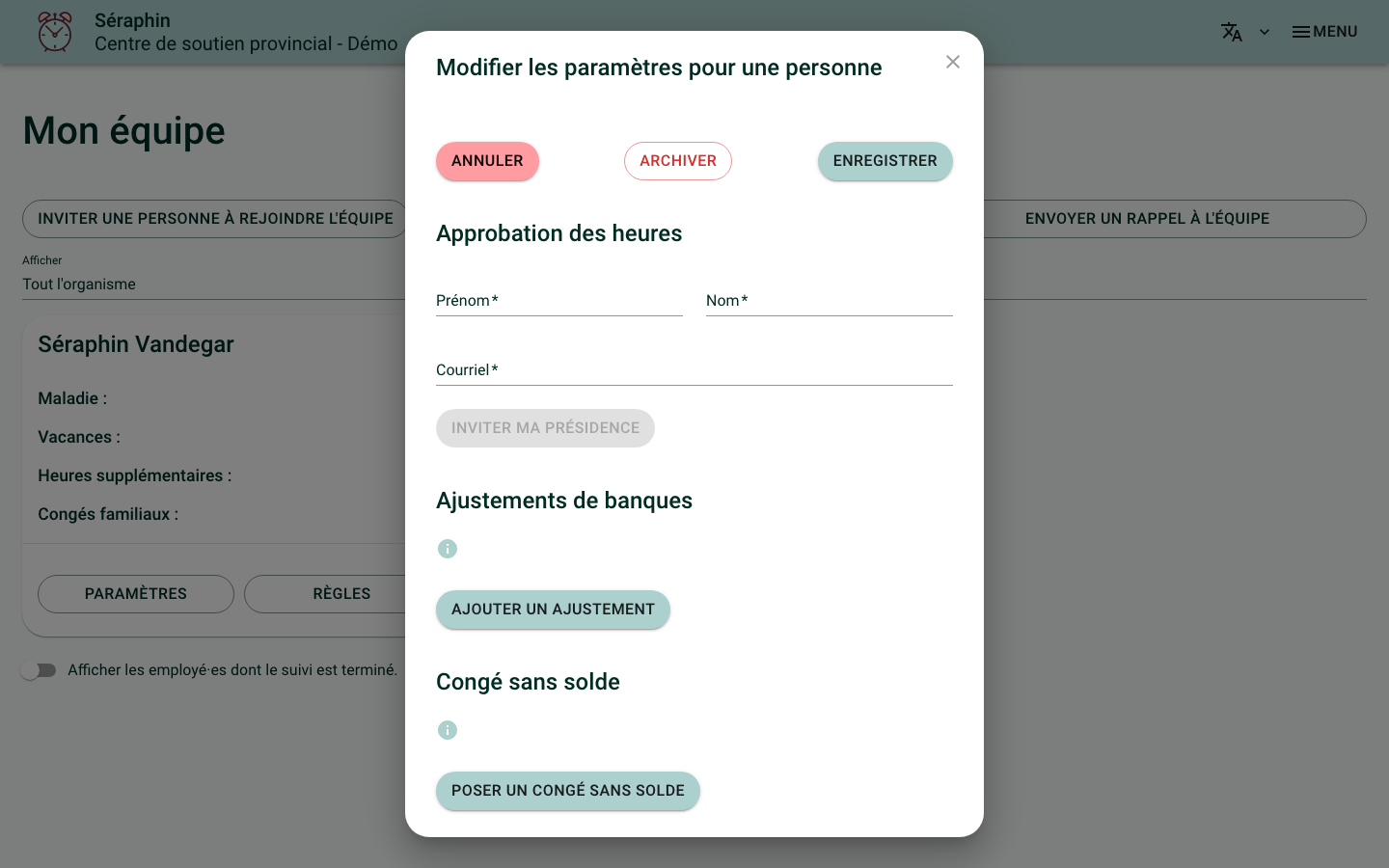
The message "Saved: your board chair receives an invitation by email." confirms the invitation. They receive a single email, in French like every email Feuille de temps sends: "[Your name] vous demande d'approuver ses heures" ("[Your name] asks you to approve their hours"), which lets them create their account. See Approving the Executive Director's Hours for what they see on their side.
Only one chair at a time: they then appear in the same section, with their status, "invitation pending" or "account created".
On the "My team" page, their card carries the "Board chair" label.
An account reserved for approving, with no timesheet, does not count toward the number of people your plan allows. See Archive an Employee for what does count toward that limit.
How to Ask for a Month to Be Approved?
Once the chair is named, an "Approval of your hours" block appears at the top of the "My Timesheets" page, under the title.
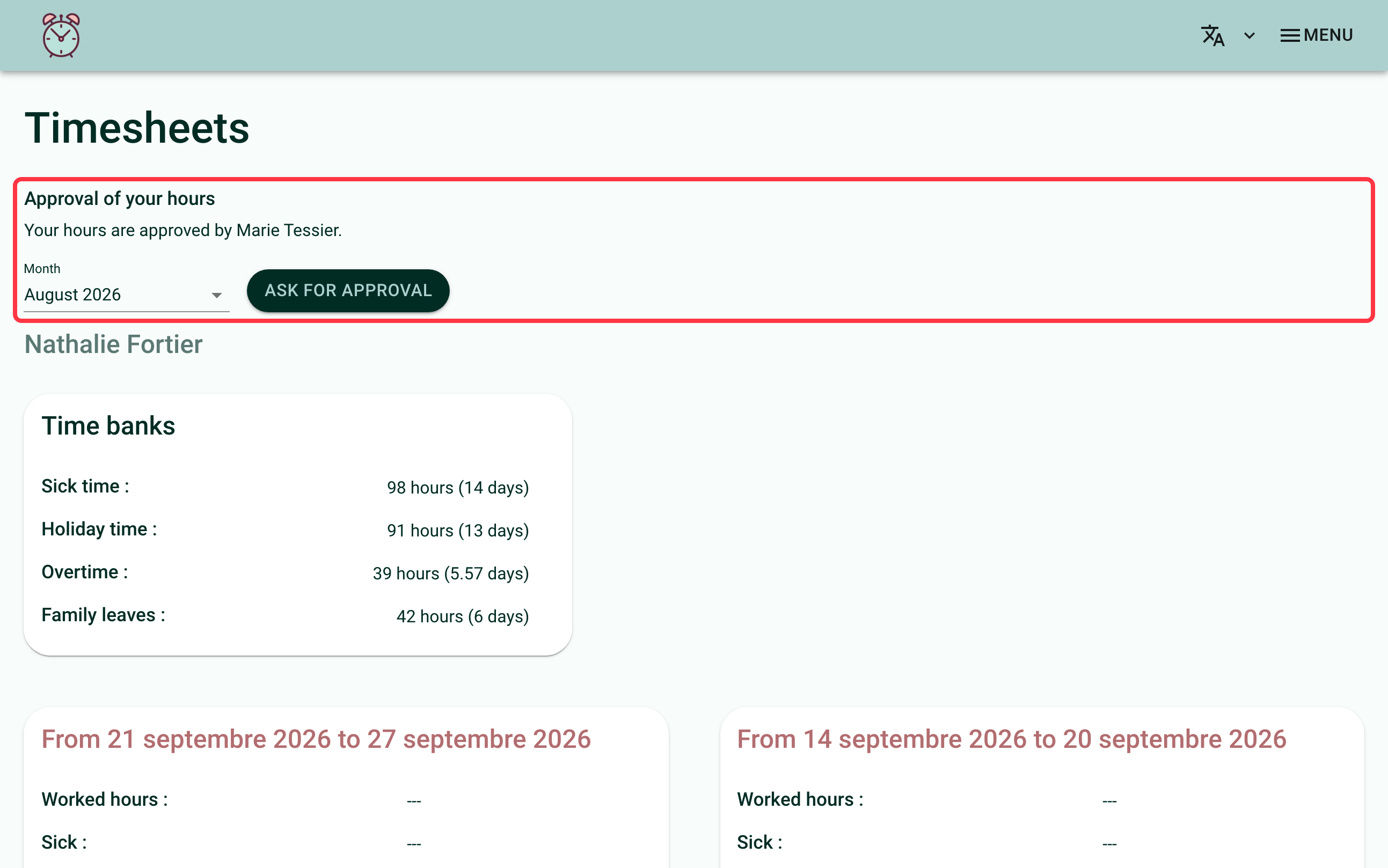
Choose the month in the "Month" field, then click "Ask for approval". The month must hold at least one signed week. The chair then receives an email asking them to approve your hours for that month, with a link that opens that month on their screen.
Only one request per month can go out per day. If you ask again the same day, Feuille de temps tells you so rather than sending a second email.
Frequently Asked Questions
Can more than one person approve your hours?
No, only one board chair at a time.
Can the chair see your hourly rate?
No. They see the hours of the month and the balances at the end of the month, never the hourly rate.
How to remove the chair?
Go back to the "Approval of hours" section of your settings and click "Remove". Their account is archived if they hold no other role, and the result is the same if another manager archives them directly from their card in "My team". You can then invite a new chair right away, with the same address or a different one: an archived chair's account cannot be reactivated, they must be invited again.
If you need help with this, write to us at support@feuilledetemps.ca.