People Without a Fixed Schedule
Some people do not have fixed hours from one week to the next. For them, the "No fixed schedule" switch removes everything from the timesheet that assumes a reference schedule: overtime, undertime and the sick time bank.
To follow the instructions in this article, you will need access to the manager features.
How to Turn On "No Fixed Schedule" for a Person?
Go to the "My Team" page and click "Rules" in the section of the person concerned.
"No fixed schedule" can only be set on a rule of the person's own. If they still follow the organization's, click "Define user specific rules" first.
In the "Working time" section, turn on the "No fixed schedule" switch.
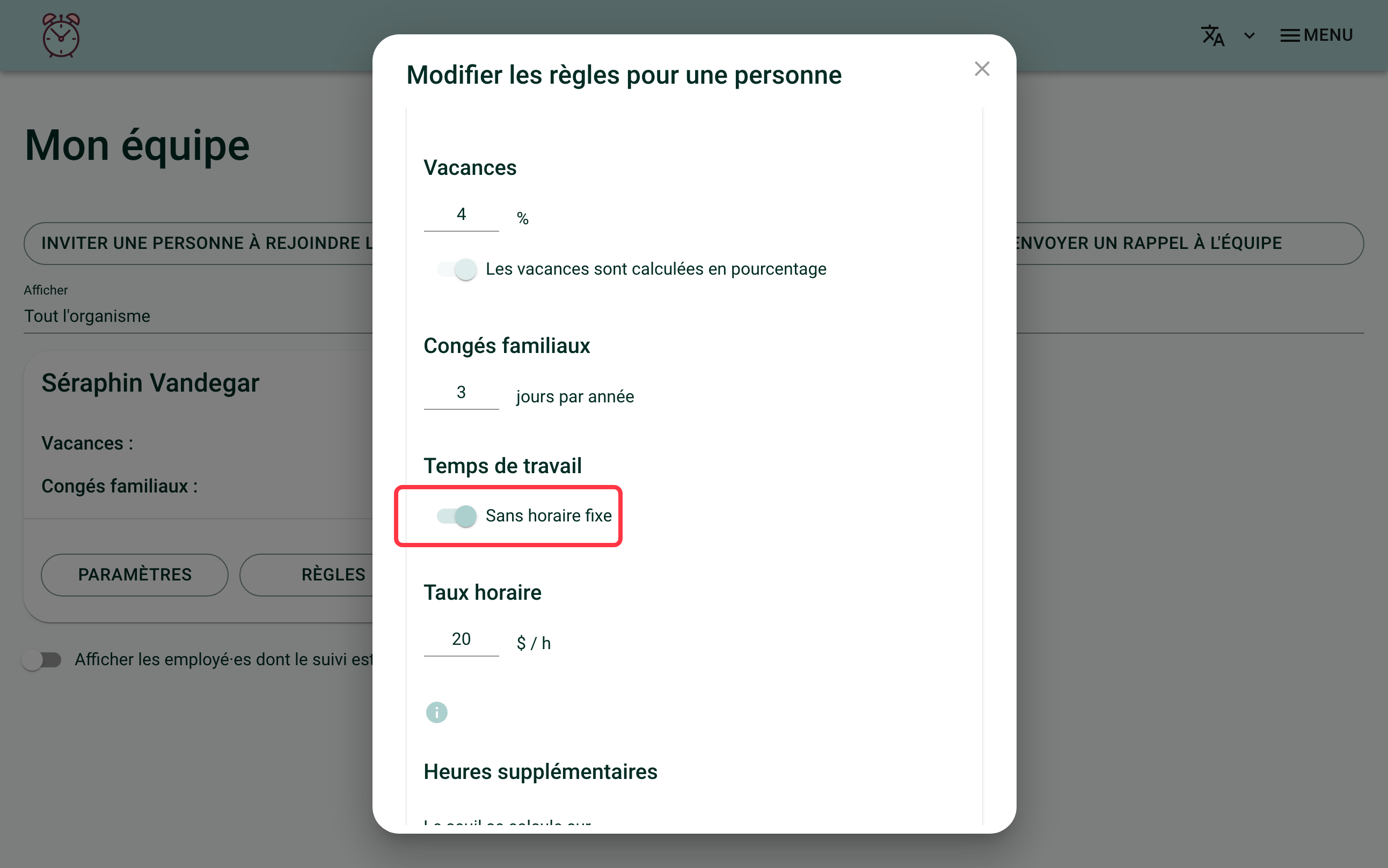
An "Hourly rate" field becomes required: fill it in, then click "Save".
The same switch is also offered when inviting a new person, in place of a number of hours per week.
What Does the Person See on Their Timesheet?
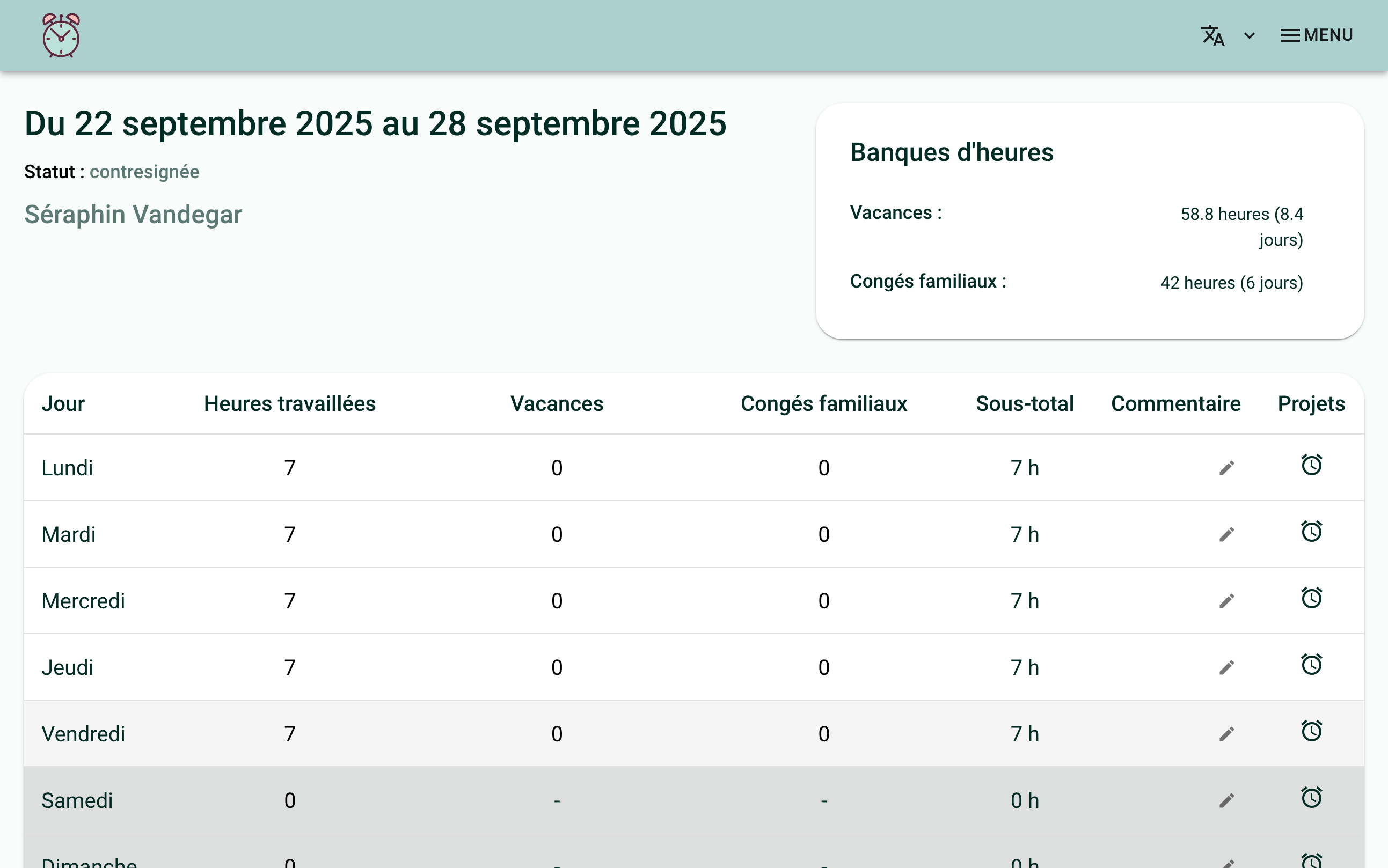
The "Sick", "Undertime" and "Overtime" columns disappear from their timesheet, both for each day and for the week's total. If your organization uses a "Special leave" column, it disappears too. What remains: worked hours, vacation, family leave and the subtotal.
Every worked hour stays a worked hour: it never becomes overtime nor undertime, whatever the number of hours entered in the week. A person on a fixed 35 hour schedule who works 40 hours in their week sees 5 hours of overtime show up. Without a fixed schedule, the same 40 hours stay 40 worked hours.
What About Vacation?
It accumulates as a percentage of what the person is paid, never as days per year: the "Vacation is calculated in percentage" switch turns itself on and cannot be turned off. The mechanism and a worked example are explained in Managing Rule Changes for an Employee.
What About Reports?
The payroll report leaves the "Overtime" and "Undertime" columns empty for these people. The time bank report also shows no overtime balance for them.
If you need help with this, write to us at support@feuilledetemps.ca.