Countersigning Timesheets
After being signed by an employee, a timesheet can be reviewed by a manager or team leader.
Once this review is complete, the timesheet is countersigned.
A countersigned timesheet is locked: its hours can no longer change, and the employee cannot remove the countersignature.
To simplify managers' tasks, Feuille de Temps allows you to find all the timesheets that need to be countersigned in one place.
To follow the instructions in this article, you will need access to the manager features.
How to See All Timesheets Awaiting Countersignature?
Go to the "To-Do" page, and you will see that the first section is called "To Countersign."
Here, you'll find all the timesheets that have been signed by an employee. They are organized by employee.
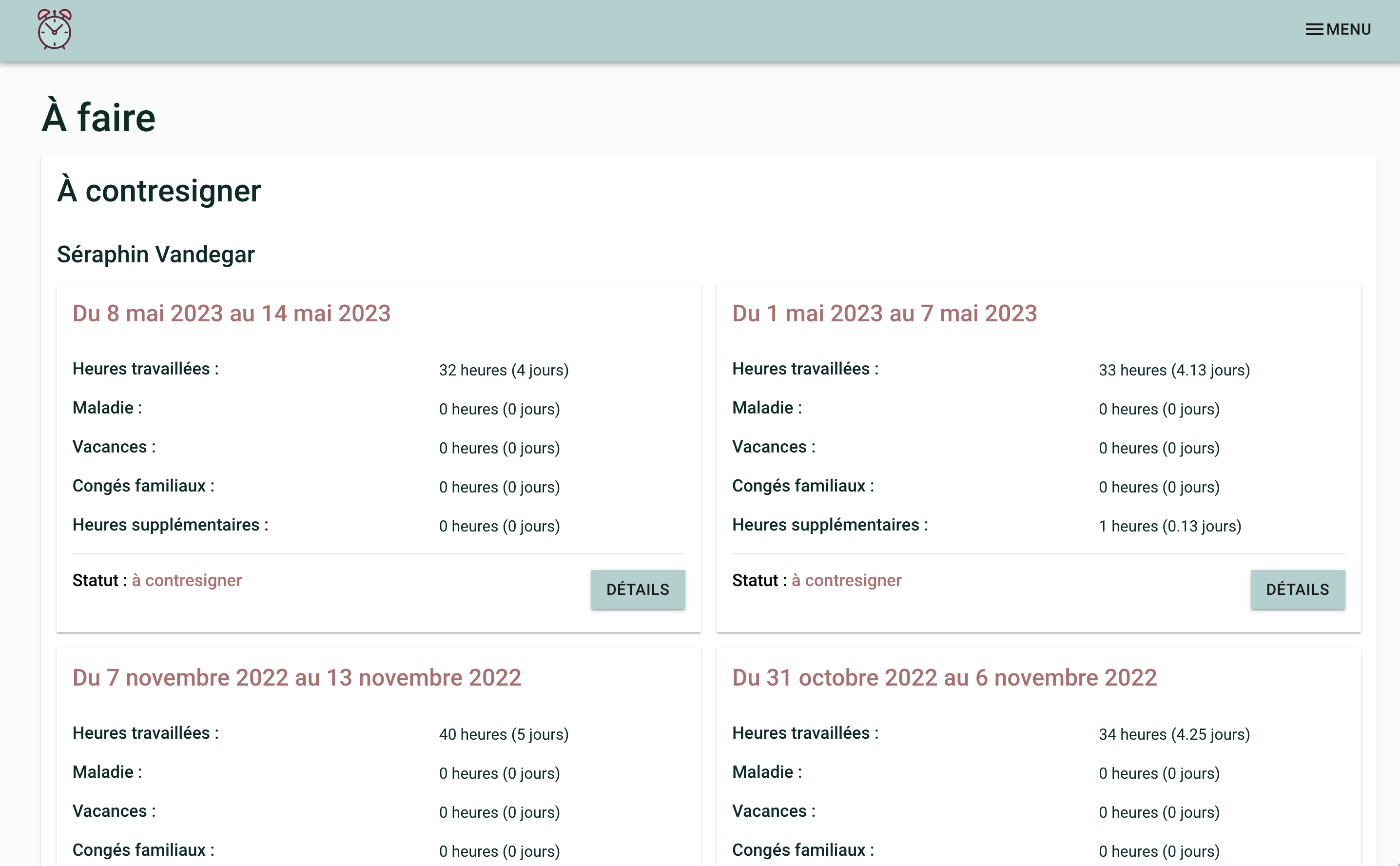
Click on the Details of a Timesheet
You can now see all the details of a timesheet and countersign it if everything is correct.
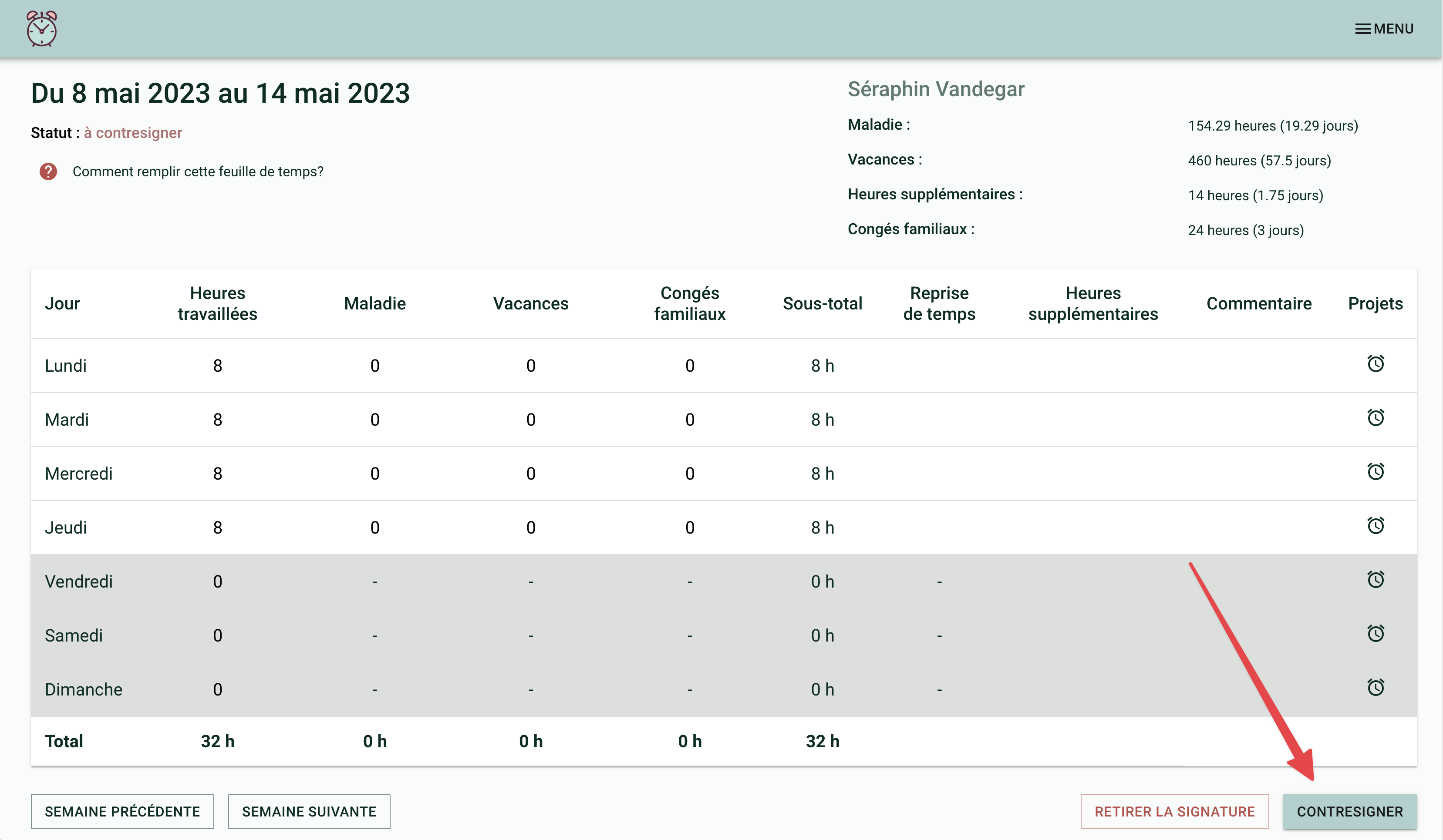
How to correct the hours of a signed timesheet?
Once signed, a timesheet keeps its hours: an employee who wants to change them has to click "Un-sign" first.
As a manager, you can correct the hours of a signed timesheet at the moment you countersign it: change the hours, then click "Countersign". The countersignature saves your correction.
How to change a timesheet that is already countersigned?
The hours of a countersigned timesheet no longer change, for anyone. To change them, a manager first clicks "un-countersign". The timesheet is then no longer signed: change the hours, sign it again, then countersign it.
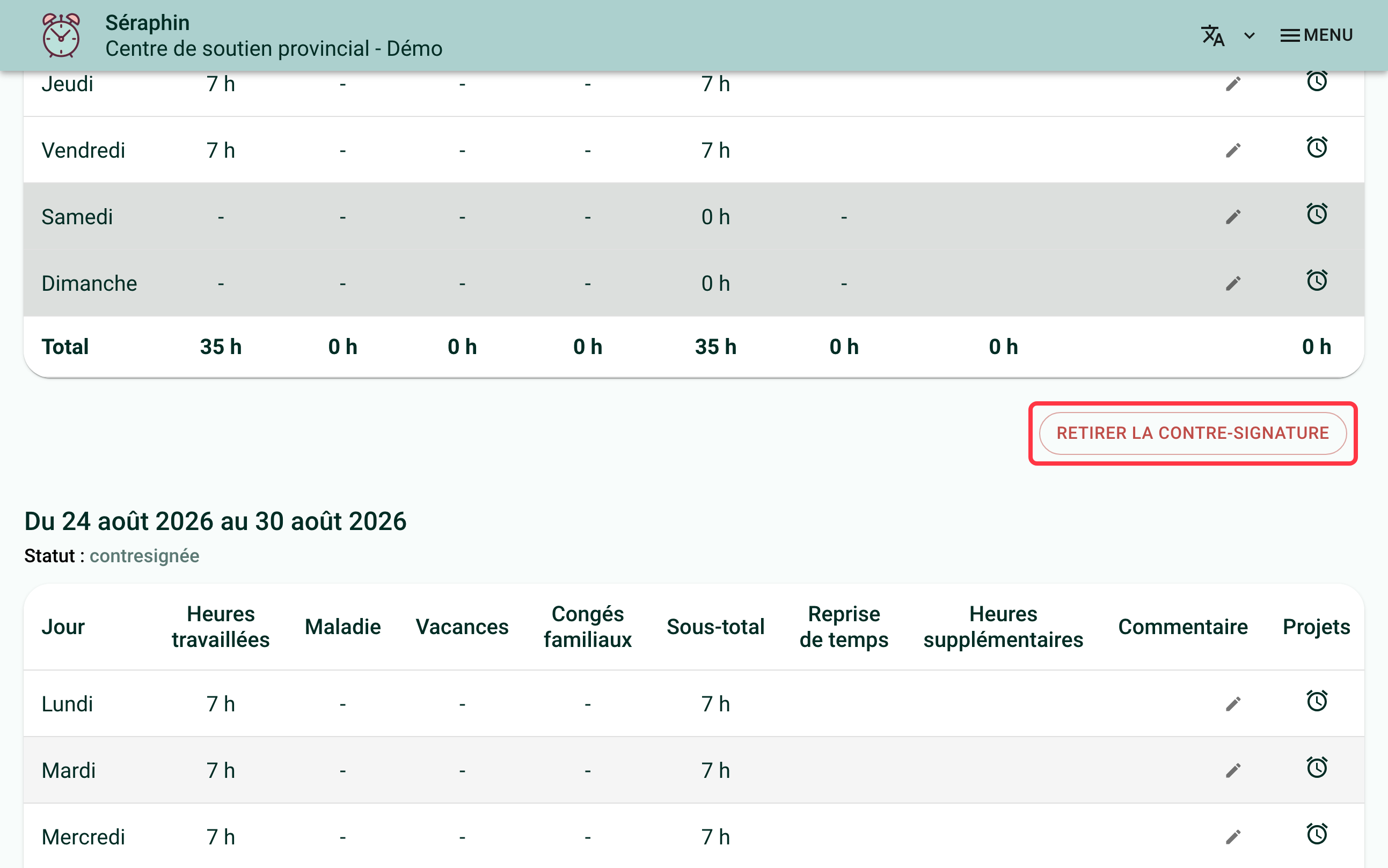
A manager can also remove the countersignature of their own timesheet, unless your organization turned on "Forbid countersigning one's own timesheet": the button then does not appear on their own timesheet.
The employee does not see this button. If they open a countersigned timesheet, a message tells them the timesheet can no longer be updated.
How to countersign a whole pay period?
If your organization shows the whole pay period on the timesheet, a "Countersign the period" button countersigns all the signed weeks of the period at once, instead of one week at a time.
How to forbid countersigning one's own timesheet?
By default, a person with manager access can countersign their own timesheet. This is handy when the executive director is alone at that level, but some organizations prefer that someone else always checks the director's hours.
Go to the "My Organization" page, in the "Options" section, then turn on the "Forbid countersigning one's own timesheet" switch, in the "Countersignature" card. The change is saved right away.
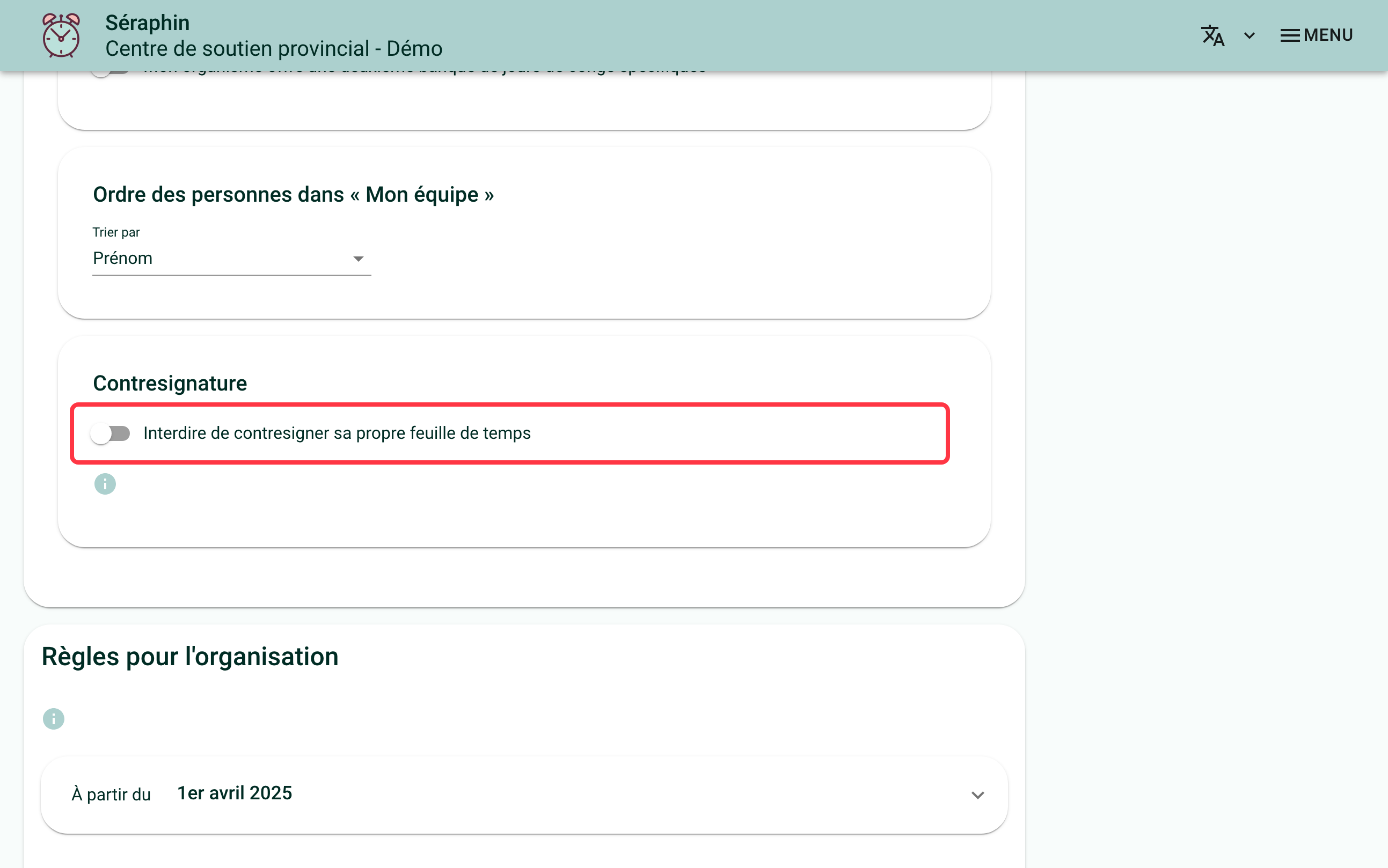
Managers are concerned too: on their own signed timesheet, a person no longer sees the "Countersign" button. The message "Your organization asks for someone else to countersign your timesheets." replaces it, and they keep the "Un-sign" button. Another manager then has to countersign the timesheet.
If you are the only manager in your organization, someone else must be able to countersign your timesheets: a second manager, or your board chair if they approve your hours. Without either, your timesheets will stay signed without being countersigned.
Timesheets that are already countersigned do not change. Turning the switch off gives every manager back the ability to countersign their own timesheet.
If you need help with this, write to us at support@feuilledetemps.ca.