Showing the whole pay period on the timesheet
When your organization's pay period has several weeks, for example two weeks, each person has to open, fill in and sign their timesheets one week at a time. This setting shows all the weeks of the period on one page instead, with a button to sign them all at once.
It is meant for organizations that pay every two weeks or every month: signing the period then takes a single gesture, and so does countersigning it.
To follow the instructions in this article, you will need access to the organization's manager features. Your organization must also have set a pay period of several weeks, in "My Organization".
How to turn on the whole-period display?
Go to the "My Organization" page, in the "Pay period" card, then turn on the "Show the whole pay period on the timesheet page" switch. Then click "Save".
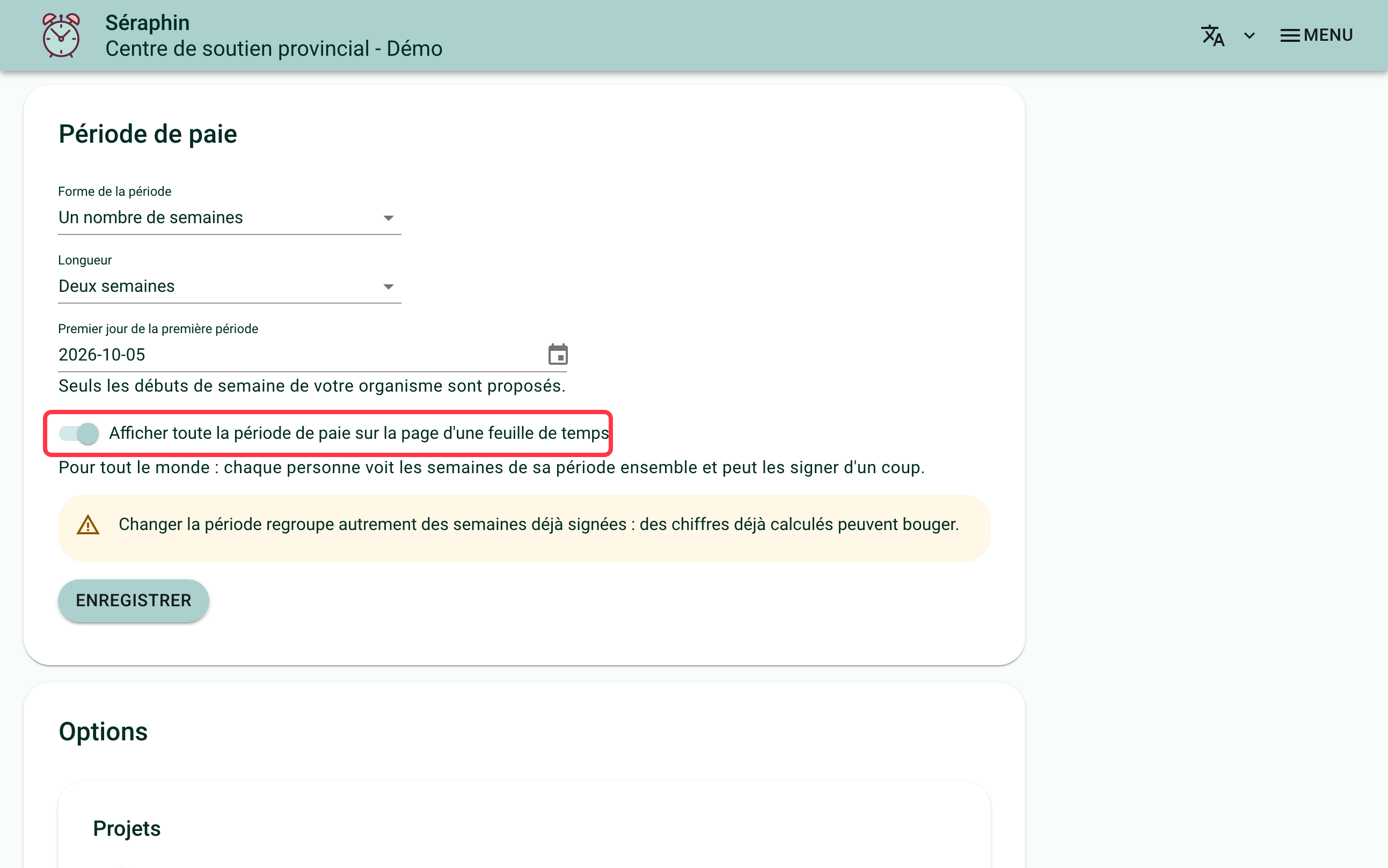
The setting applies to everyone: employees, team leaders and managers see the weeks of the period together. It is off by default, and it only appears if the pay period has several weeks (a number of weeks greater than one, the month, or twice a month).
What does a timesheet page look like?
The page title shows the period: "Pay period from … to …". Each week of the period then appears in its own block, with its days, its total and its usual buttons: "Save", "Sign", "Un-sign", "Countersign".
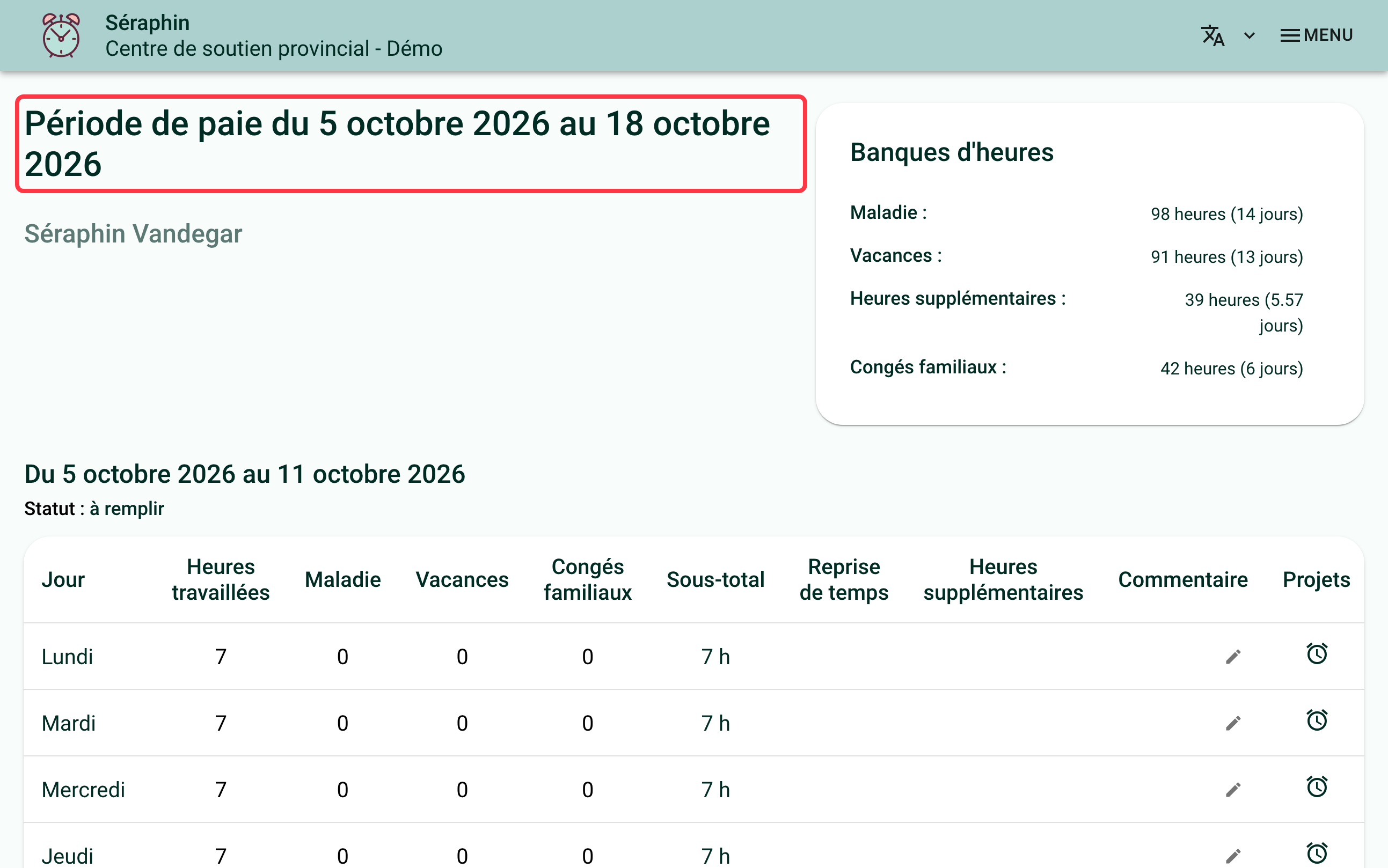
Each week keeps its own status. A period can therefore be mixed: a first week that is signed and a second one still to fill in, for example. A block acts on its own, without touching the others.
At the bottom of the page, the "Previous period" and "Next period" buttons replace "Previous week" and "Next week".
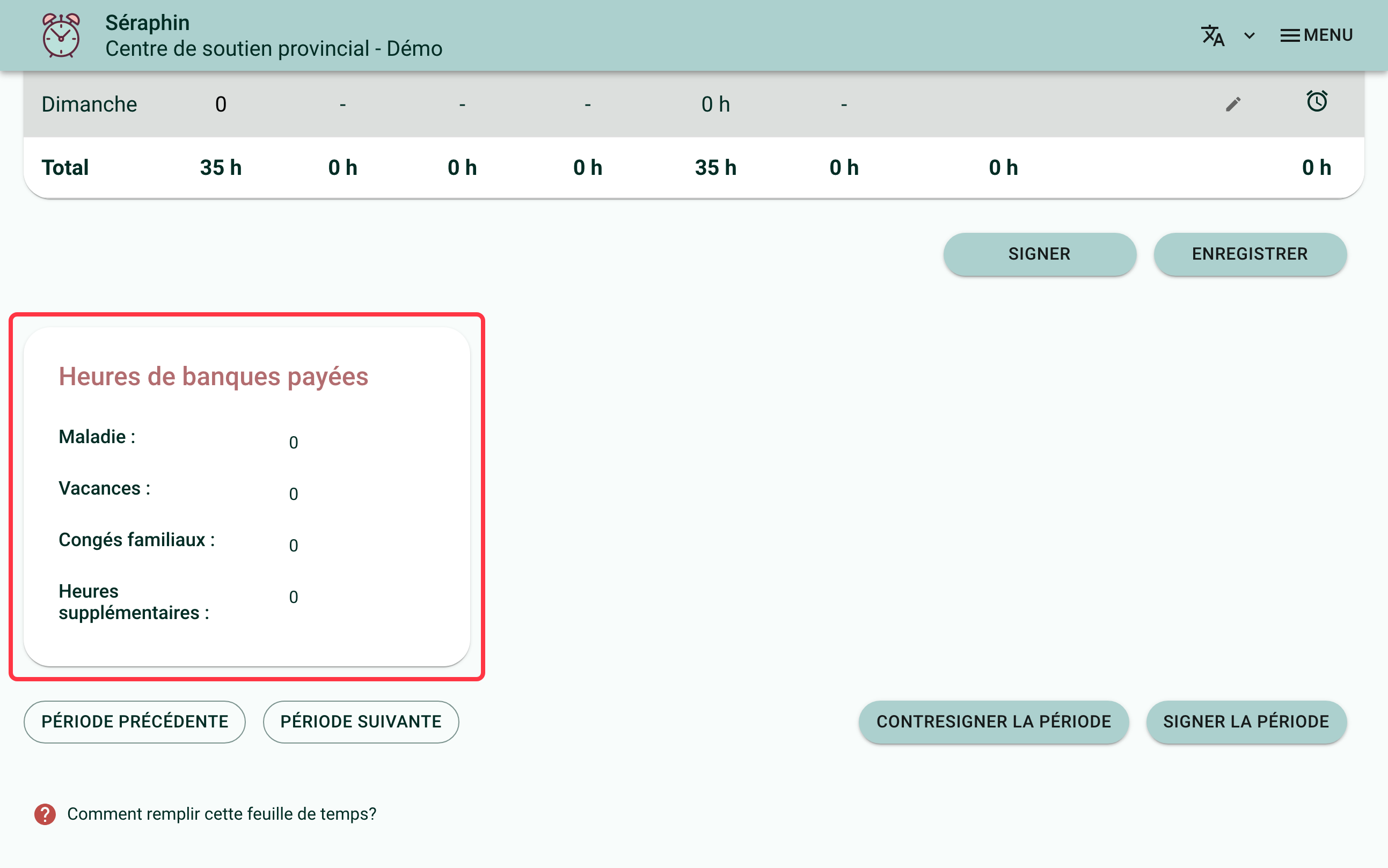
The "Paid bank hours" block appears only once, under the last week of the period, since pay is made once per period. A week that already carries a payment keeps its own block, so that no amount is hidden.
How to sign the whole period?
Fill in the weeks, then click "Sign the period". All the weeks that are ready to be signed are signed at once, as they are displayed, and unsaved changes in the other weeks are saved at the same time.
When one of the weeks cannot be signed yet, the button is greyed out and a tooltip explains why. If one of the weeks is refused when saving, none is saved and a message gives the reason: the period is never half signed.
To countersign, a manager opens the page of a signed timesheet and clicks "Countersign the period". The signed weeks of the period are countersigned together. To learn more about countersigning, read Countersigning Timesheets.
What happens if I leave the page without saving?
If weeks of the period have unsaved changes, a window asks "Leave without saving?" before you move to another page in Feuille de temps. Choose "Stay on the page" to save first, or "Leave without saving" to give up the changes. Closing or reloading the tab also triggers a question from the browser.
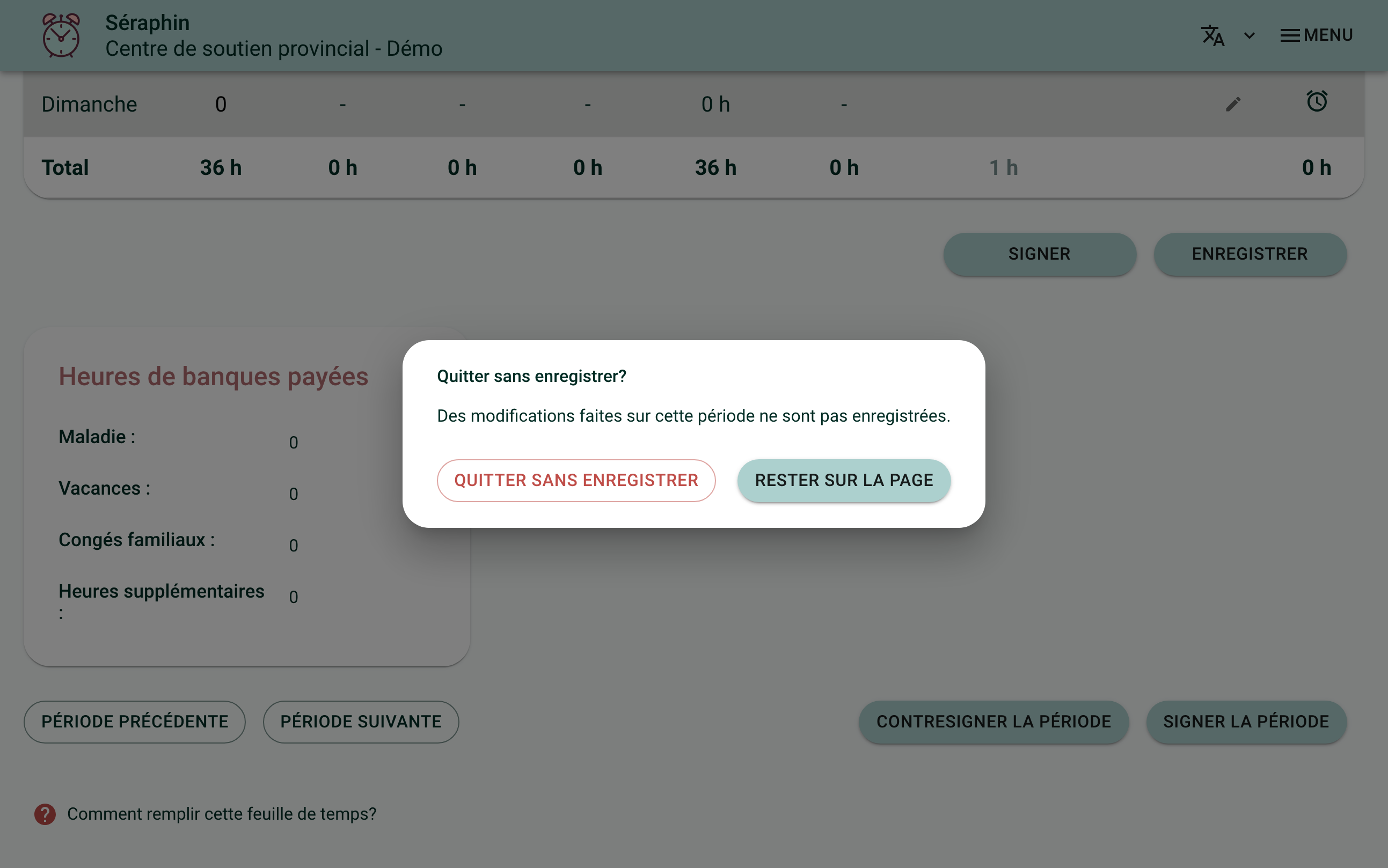
The browser's "Back" button is not watched: use the buttons on the page to change period.
Frequently asked questions
What does someone whose period is only one week see?
The setting is not offered for a one-week period. The page stays that of a single week.
Does someone hired in the middle of a period see the whole period?
They only see the weeks that are part of their tracking. The title keeps the dates of the whole period.
If you need help with this, write to us at support@feuilledetemps.ca.