Choosing the order of people in "My team"
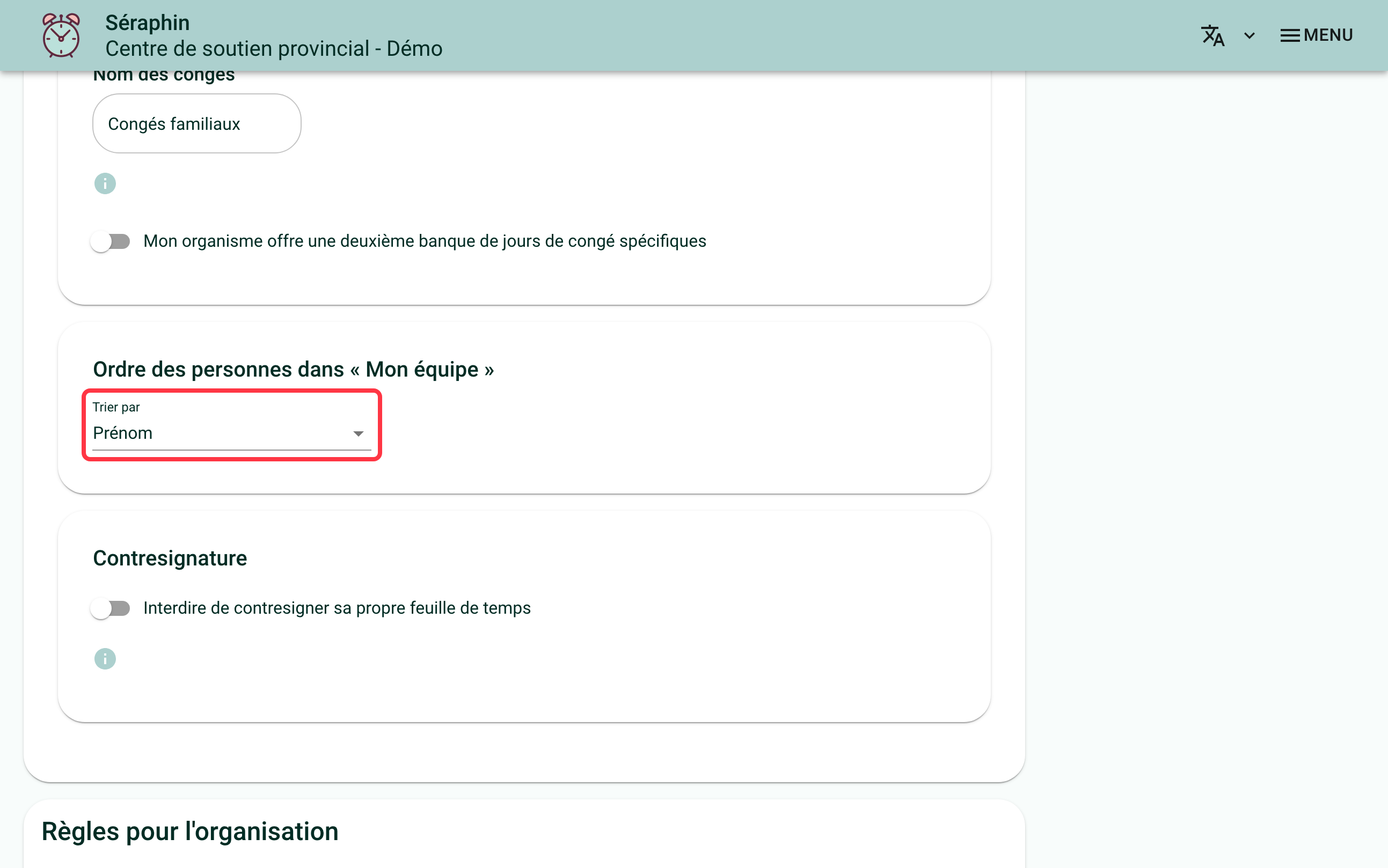
On the "My team" page, people are sorted by first name. If your organization prefers another order, for example the one of its payroll list or staff register, you can change it: by last name, or by an employee number you enter yourself on each person's record.
This order is also the one the "Previous person" and "Next person" buttons follow when you go through your team's timesheets.
To follow the instructions in this article, you will need access to the organization's manager features.
How to change the order of people?
Go to the "My Organization" page, then find the "Order of people in “My team”" card in the "Options" section.
In the "Sort by" field, choose:
- "First name", the default order;
- "Last name";
- "Employee number".
The choice is saved right away: the order of the "My team" page changes for everyone in the organization.
How to enter an employee number?
The number is optional: it is only used to sort people. You can put whatever you like in it, for example a payroll number or a seniority rank.
- Go to the "My team" page.
- Click "Settings" in the person's card.
- Fill in the "Employee number" field.
- Save.
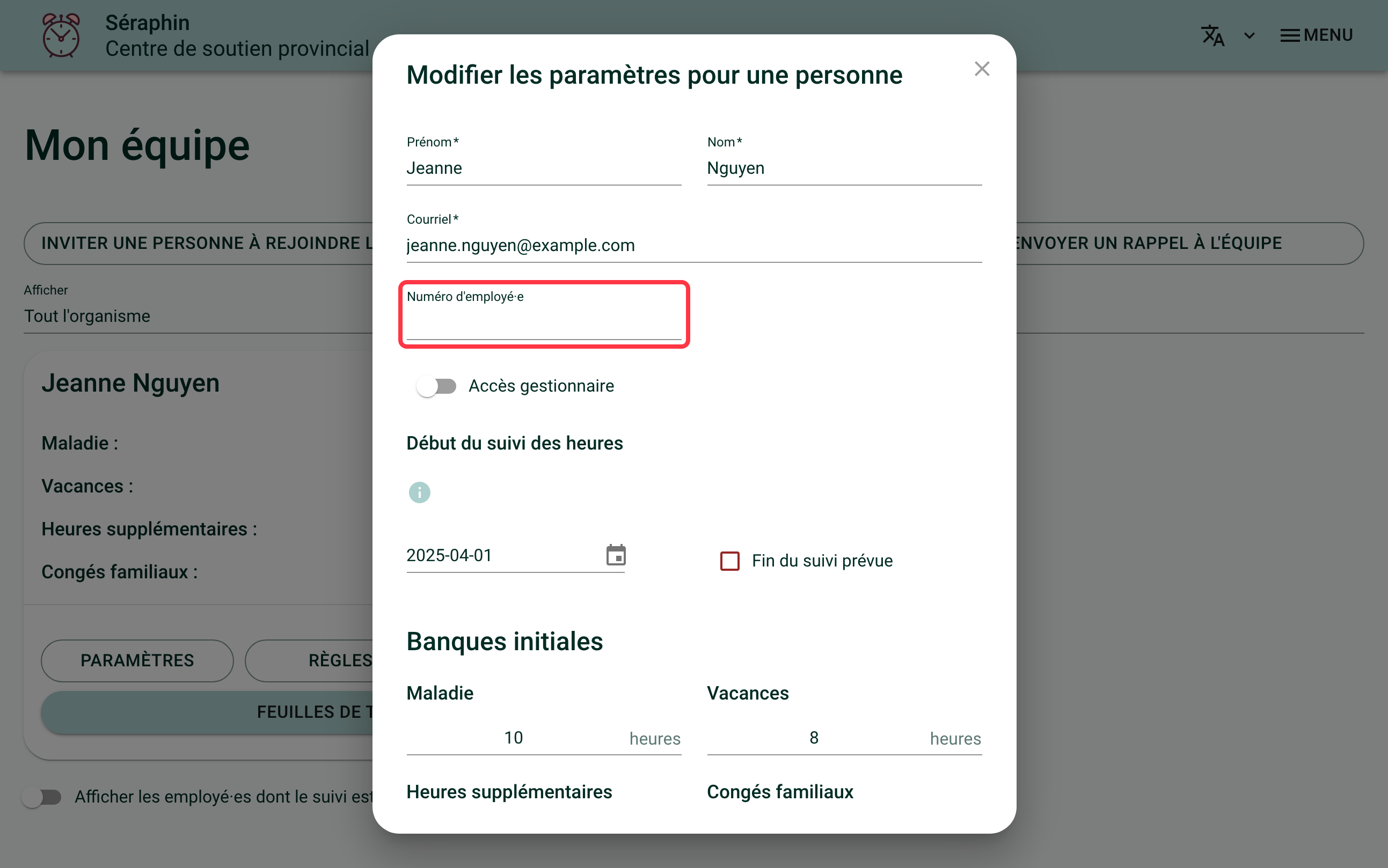
This field is only offered to the organization's managers, not to team leaders.
When you choose to sort by employee number, numbers are compared as numbers: 9 comes before 10. People without a number come last in the list.
Frequently asked questions
Do team leaders see the same order?
Yes. The order is an organization setting: everyone who has access to the "My team" page sees it sorted the same way.
Does the employee number appear on timesheets or in reports?
No. It is only used to sort the "My team" page.
If you need help with this, write to us at support@feuilledetemps.ca.