Unpaid Leave and Parental Leave
When someone is away for a period without being paid (a summer break, an extended personal leave), you can take those weeks out of tracking directly, without making them fill out timesheets for nothing. For example, during a temporary closure of a position spanning several weeks.
To add or remove unpaid leave, you will need access to the organization's administration features. Team lead access is not enough, even with full management of their team.
How to Add Unpaid Leave?
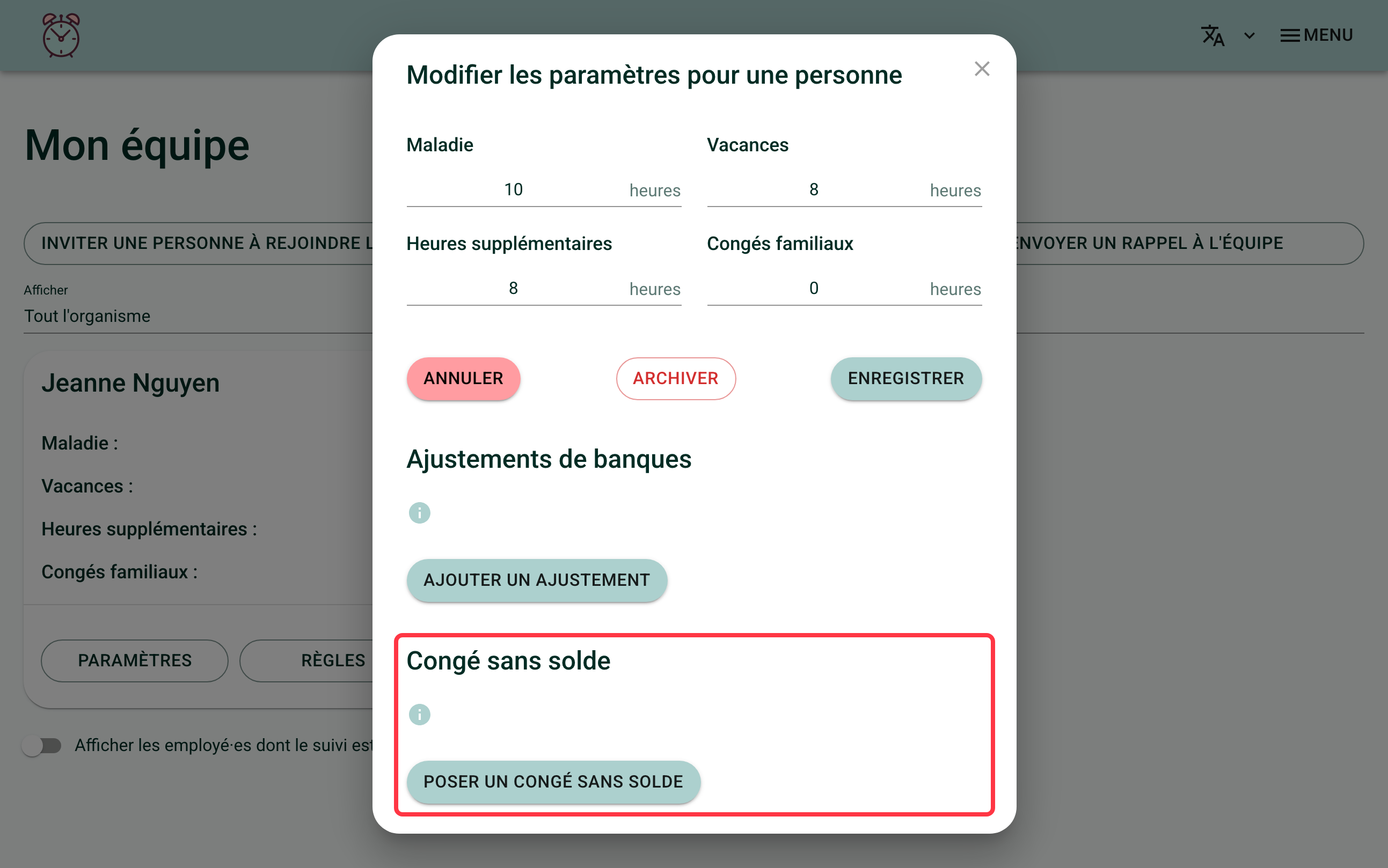
Go to the "My team" page, click on the person concerned, then on "Settings".
In the window, scroll down to the "Unpaid leave" section and click "Add unpaid leave".
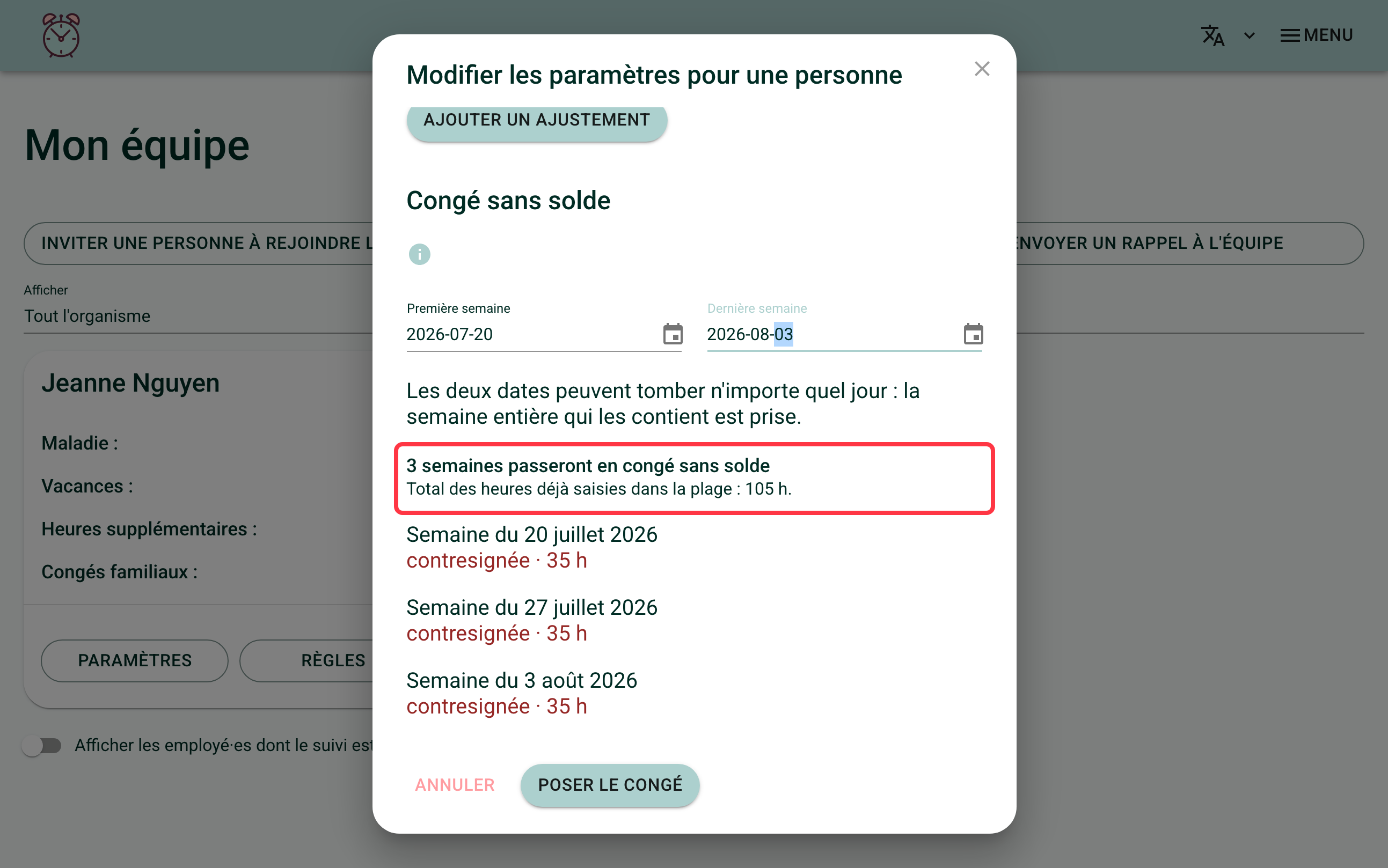
Choose the Range of Weeks
Fill in the "First week" and "Last week" fields. Both dates can fall on any day: the whole week containing them is taken.
Feuille de Temps immediately shows the number of weeks concerned, the total hours already entered in the range, and the current status of each week.
Confirm
Click "Add the leave". A box summarizes what is about to happen: the signatures and countersignatures of those weeks will be removed, and the change stays reversible from the history.
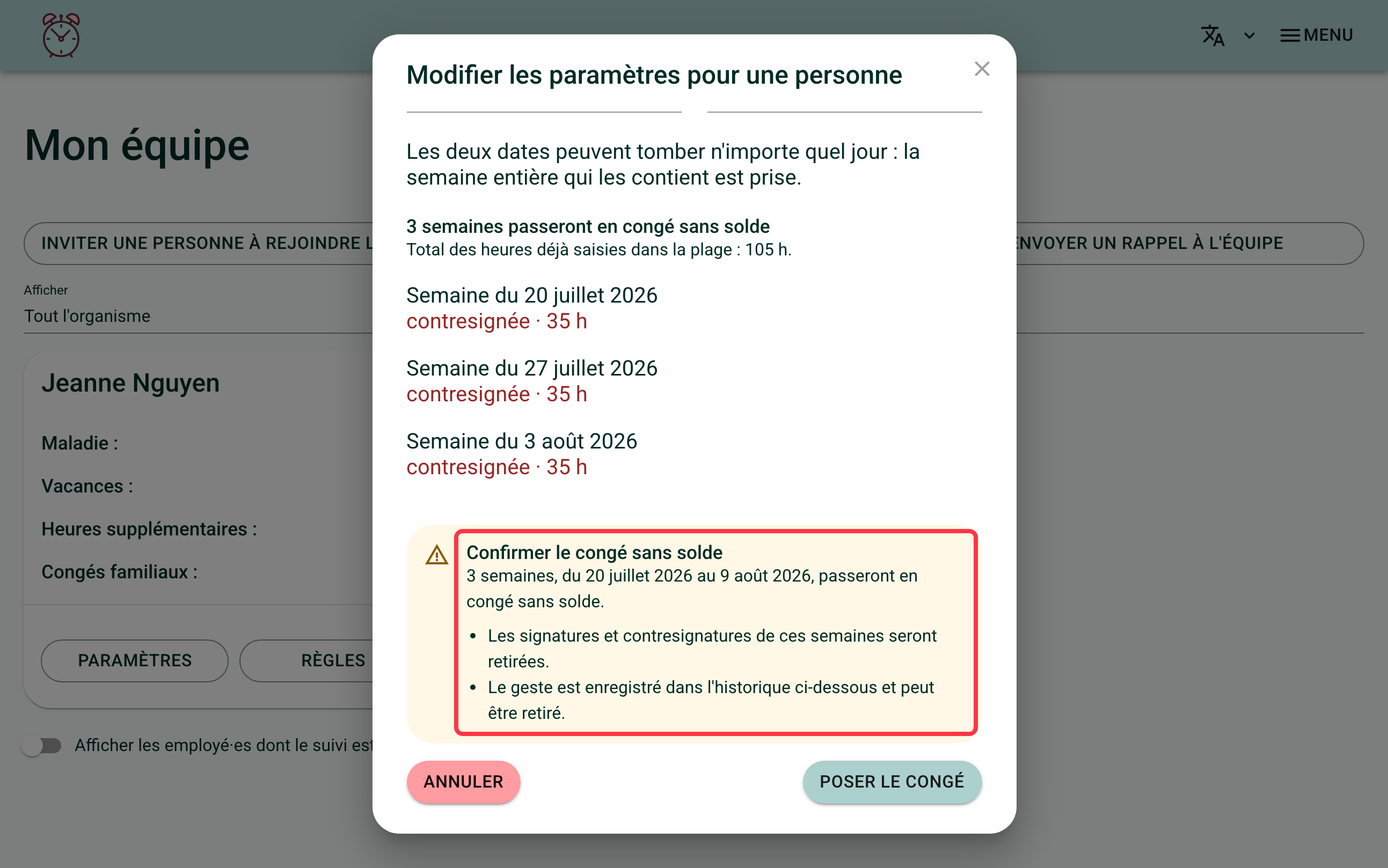
Click "Add the leave" again to save. The message "X weeks are now on unpaid leave." confirms the operation.
Adding leave again on weeks already on unpaid leave changes nothing: Feuille de Temps tells you so, rather than announcing a success for a write that did nothing.
What Changes on Those Weeks?
- The person no longer has anything to fill in or sign. Their timesheet simply shows that they are on unpaid leave.
- Those weeks no longer count as late: no reminder to fill in a timesheet is sent for them.
- Hours already entered before the leave was added are kept, not erased.
- Those weeks drop out of the time off report, for every type of leave.
- Banks that accrue from one timesheet to the next earn nothing on those weeks: unpaid leave is neither worked nor paid. The balance earned before the range does not move.
- Banks allocated per period, on the other hand, keep allocating their full amount, unless your organization has turned on the setting described below.
A bank allocated per period receives its amount in one block, on the first day of the cycle, without looking at what happens in the weeks that follow. A month or a year containing unpaid leave therefore allocates its full amount, as if the person had been there.
You can change this so those cycles only allocate the share matching the days actually covered. The setting lives in the "Unpaid leave" section of the organization's rules, on the "My Organization" page. It only concerns banks allocated per period: the ones that accrue from one timesheet to the next already earn nothing on those weeks.
To find out which of the two methods applies to you, see Configuring the Hour Bank Calculation Method.
How to Remove Unpaid Leave?
Leaves that have been added stay visible in the "Unpaid leave" section of the person's settings, with the period, the number of weeks and the name of the person who added them.
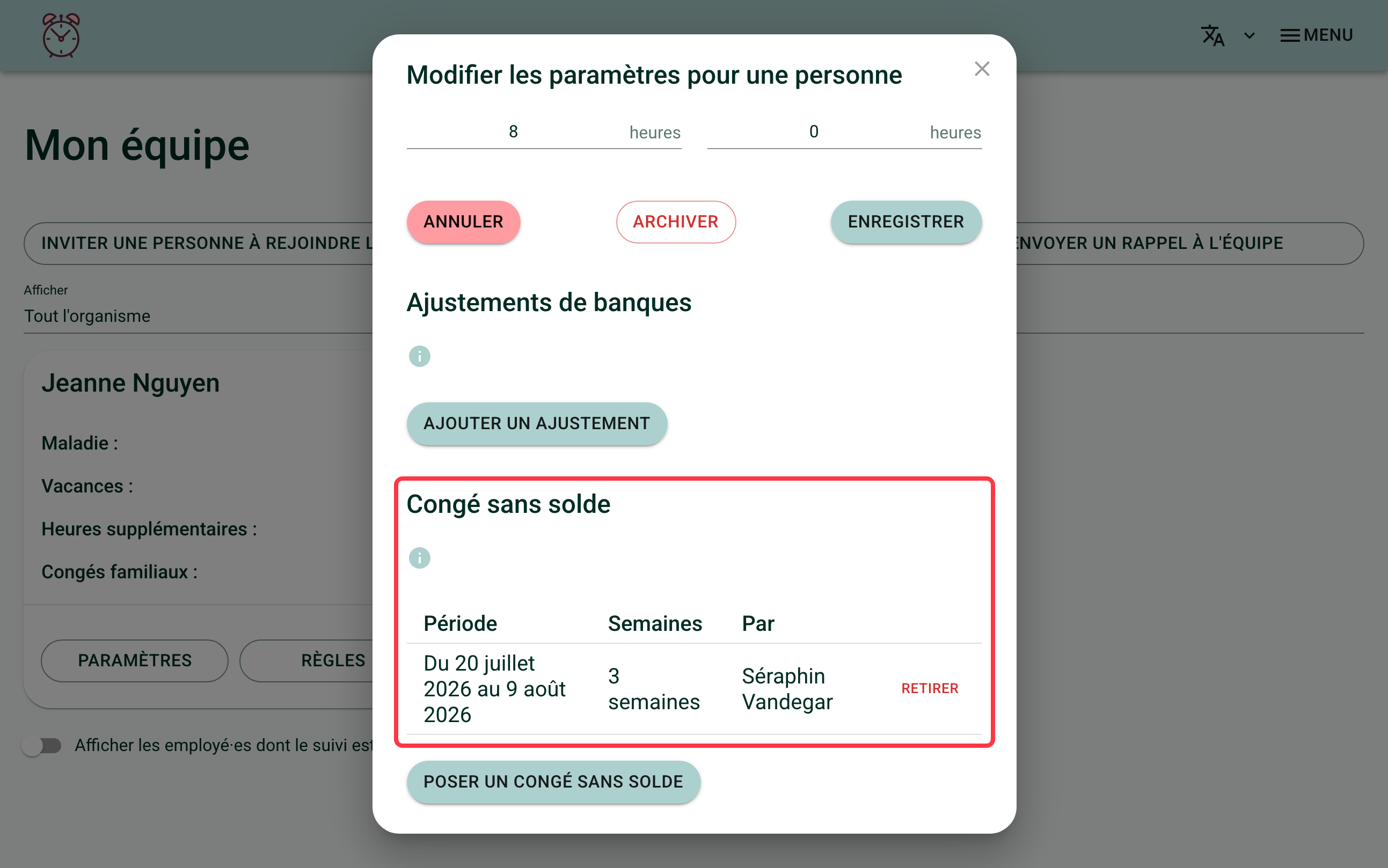
Click "Remove" next to the leave concerned. Each week goes back to the status it held before the leave: signed, countersigned or pending, whatever it was. Nothing is recalculated beyond those weeks: the hours entered stay the ones that were already there.
What Is the Difference With Parental Leave?
During parental leave, unlike unpaid leave, the vacation, sick leave and family leave banks keep accruing normally. The person has nothing to fill in or sign, but their tracking keeps earning what it would have earned normally.
Setting up parental leave is not yet self-service. Write to us at support@feuilledetemps.ca with the person's name and the period concerned, and we will take care of it.
This Is Not a Temporary Reduced Schedule
Someone who keeps working, but fewer hours per week for a given period (a gradual return, for example), is not on unpaid leave: they stay paid and keep filling in their timesheets normally. For that case, change their expected weekly hours over a dated period instead: see Managing Rule Changes for an Employee.
If you need help with this, write to us at support@feuilledetemps.ca.