Managing Public Holidays
Feuille de Temps keeps a list of public holidays for the organization, which applies to the whole team. You can also set a list specific to one person, without touching anyone else's.
This article explains where each one is set, and above all what a public holiday changes about the hours of the week.
To follow the instructions in this article, you will need access to the manager features.
- Where Are the Organization's Public Holidays Set?
- How to Give a Person Different Public Holidays?
- Can a Public Holiday Be Half a Day?
- What Effect Does a Public Holiday Have on Hours?
- Can I Add a Public Holiday for a Date That Has Already Passed?
- How to Apply the Change Starting from a Date Only?
- Why Don't the Banks Move Right Away?
Where Are the Organization's Public Holidays Set?
Go to the "My Organization" page, then scroll down to the "Organization's rules" section. The "Public holidays" section holds the list of holidays for the year.
Choose a date in the calendar, then click "Add a public holiday". To remove a date, click the trash icon next to it.
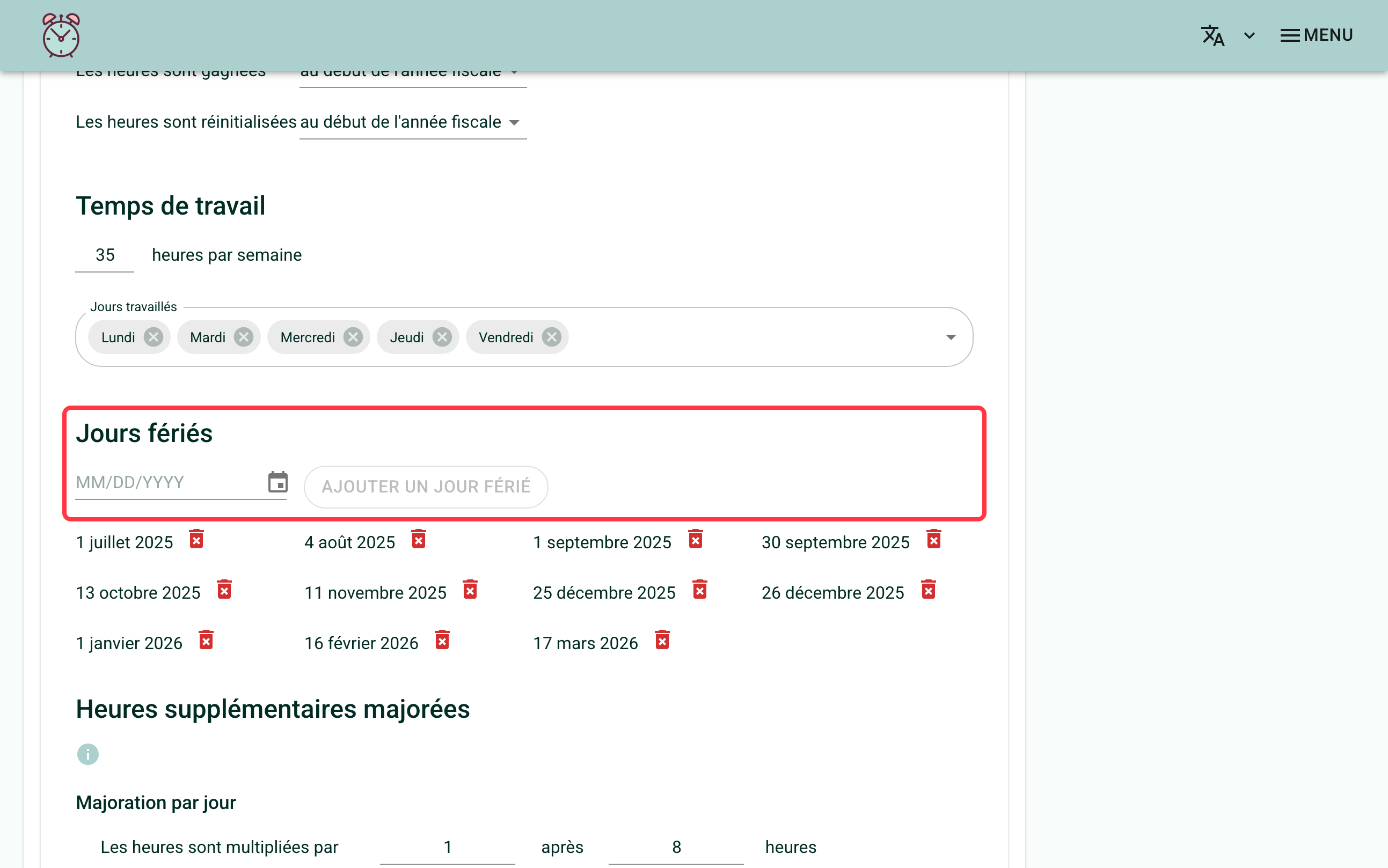
These public holidays apply to the whole team. They are part of the organization's rules, which work through dated periods. To learn more, see Managing Rule Changes for the Organization.
The public holiday list is a plain sequence of dates: Feuille de Temps does not move anything on its own. If a public holiday falls on a Saturday or a Sunday, it does not roll over to another day on its own. Several provinces require giving the following Monday off when a holiday falls on a weekend; in that case, it is up to you to add that Monday to the list. A Saturday entered on its own has no effect anyway, since it is not a working day.
How to Give a Person Different Public Holidays?
Public holidays are not the same everywhere in Canada. An Ontario organization that hires someone in Quebec must give them June 24th off, even though the rest of the team works that day.
Go to the "My team" page, click on the person concerned, then on "Rules".
Turn on the "Set public holidays specific to this person" switch.
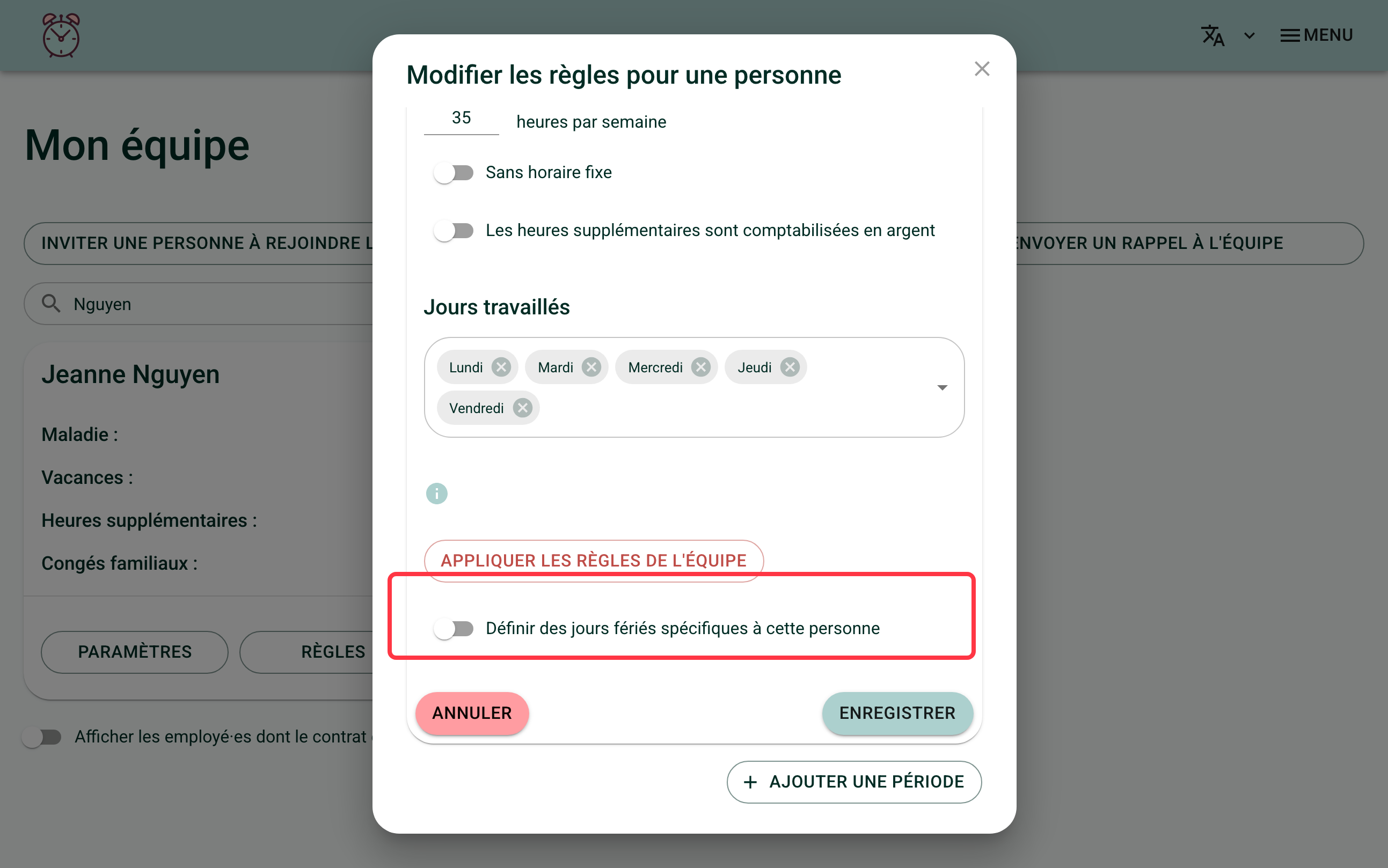
The list appears, already filled in with the organization's public holidays. You do not have to rebuild it: remove the dates that do not apply to this person, and add the ones that are specific to them.
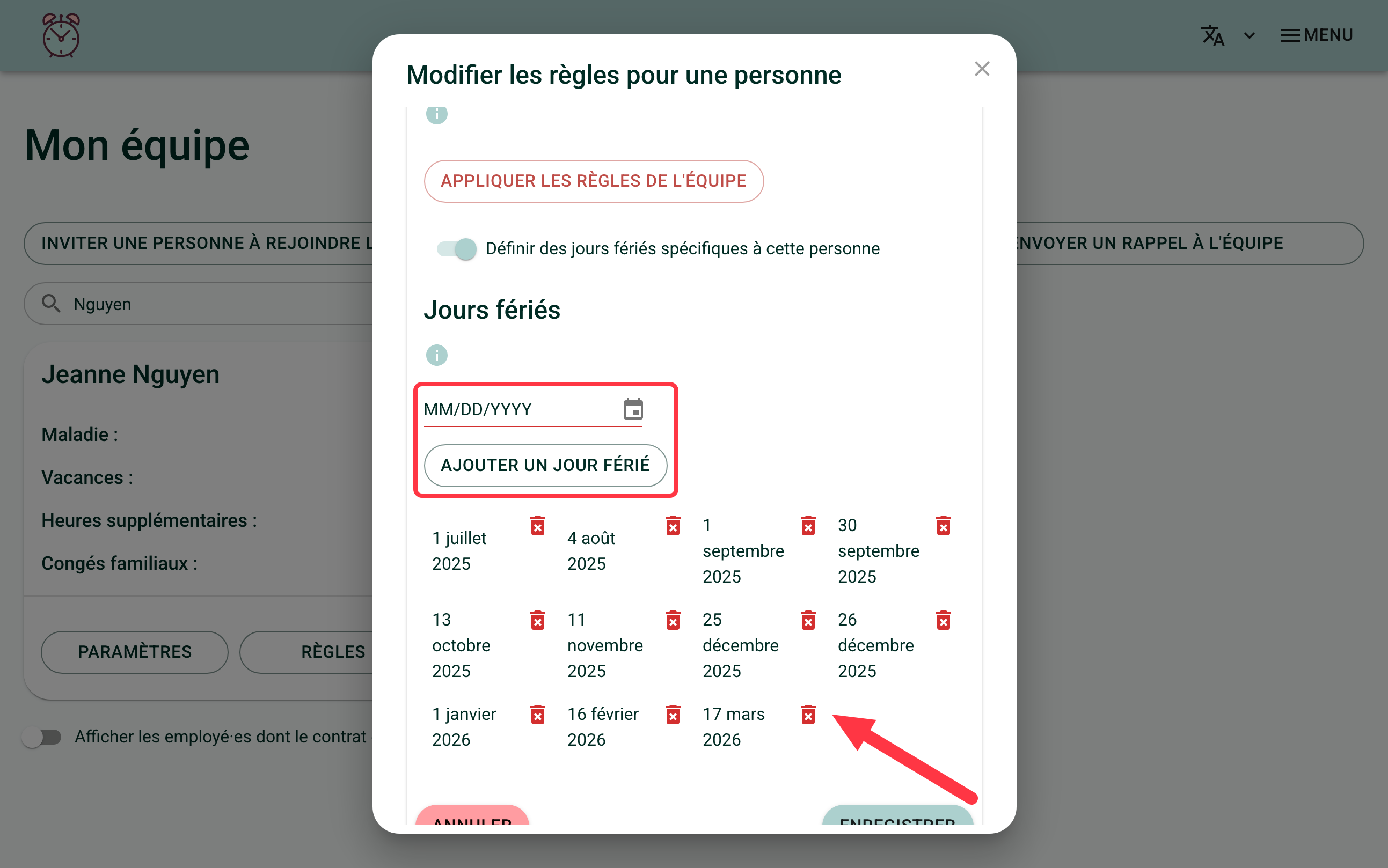
Then click "Save".
This switch is independent from the "Define user specific rules" button. A person can therefore have their own public holidays while keeping the team's vacation, sick leave and working time rules.
Can a Public Holiday Be Half a Day?
No. A public holiday always covers a full day, never half a day.
An organization that only closes for the afternoon of December 24th cannot split the public holiday in two. The workaround is to enter the half day as special leave instead of as a public holiday.
The "Special leave" column needs to be turned on for this workaround to work. If it does not appear on your team's timesheets, write to us to turn it on.
The number of hours to enter is half of a normal working day. For a person whose working day is 7.5 h, the half day of special leave is therefore 3.75 h.
What Effect Does a Public Holiday Have on Hours?
This is the most important point of this article, because it often comes as a surprise.
A public holiday is not a working day. The hours planned for the week therefore go down by one day. If the person works anyway that day, those hours are added on top of the planned hours: they go into overtime.
The reverse is also true. When you remove a public holiday from a person's list, that day becomes a normal working day again. The hours planned for the week go back up, and the hours that used to count as overtime become normal hours again.
Example
Take a person who works 35 hours a week, spread over five 7-hour days.
- June 24th is in their list of public holidays. They still work 7 hours that day, plus 28 hours over the rest of the week, for a total of 35 hours. Since the holiday removes one day, the week only plans for 28 hours of work. The extra 7 hours go into the overtime bank.
- You remove June 24th from their list. The week once again plans for 35 hours, and the person worked 35. The overtime bank goes back to zero for that week.
No hours have disappeared. The 35 hours are still recorded on the timesheet, in the same place. They have only changed category, from "overtime" to "regular". This is why an overtime bank can go down after a change to public holidays.
Can I Add a Public Holiday for a Date That Has Already Passed?
Yes. This is actually the most common move when catching up on a public holiday list that has fallen behind: several dates from the past few months get added at once.
The same logic applies whether the date is in the past or in the future. A public holiday is not a working day, so the hours planned for the week it falls in go down by one day. If the person worked that day, those hours go into their overtime bank.
This is also true for weeks that are already signed and countersigned. Adding a public holiday on a past date recalculates the weeks concerned, even if they were signed a long time ago. As with a removal, no hours are lost in this recalculation: they only change category, as in the example above.
You add a date from last spring, left off the list for several months. The weeks that contain that date get recalculated: the planned hours go down by one day, and the hours the person worked that day go into overtime, even though those weeks were signed and countersigned a long time ago.
How to Apply the Change Starting from a Date Only?
A person's public holidays are part of their rules, and rules work through dated periods.
If you turn on the switch on the current period, the change applies for the whole span of that period. The current period usually starts at the very beginning of the account, so the banks are then recalculated from the origin.
For a change to apply only from a specific date onward, add a new dated period instead. See Managing Rule Changes for an Employee.
Why Don't the Banks Move Right Away?
Hour banks only take signed timesheets into account. A timesheet still being entered is not counted.
If you change a person's public holidays and the balances do not change the way you expected, first check which weeks are signed.
If you need help with this, write to us at support@feuilledetemps.ca.