Splitting Your Hours by Project
Some organizations want to know how many hours go into each project, on top of the day's total. For example, an organization that manages several buildings may want to know how many maintenance hours went into each one. This article shows where to enter that breakdown in your timesheet.
This feature is not turned on for every organization. If the "Projects" column does not appear in your timesheet, it simply is not used where you work.
This article assumes you already know how to enter your worked hours. If that is not the case yet, see Filling Out Your Timesheet first.
How to Split Your Hours by Project?
Where to Find the "Projects" Column?
Once your worked hours are entered for a day, a clock-shaped icon appears in the "Projects" column, at the far right of the row.
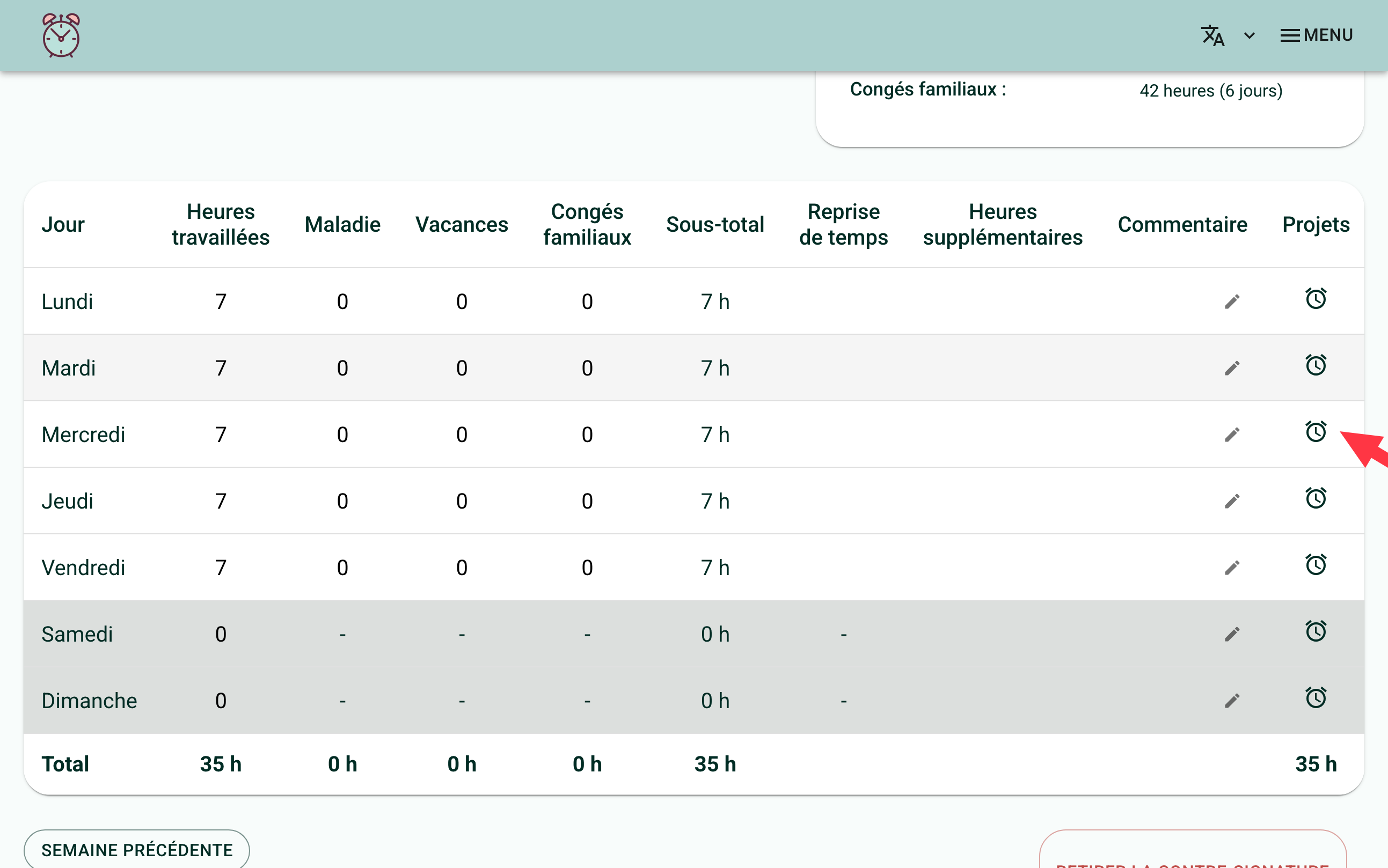
How to Open the Breakdown Window?
Click the icon. A window opens, with one card per project you are assigned to. For each project, enter the number of hours you spent on it that day.
The total at the top of the window updates as you go and is compared with the worked hours entered for that day.
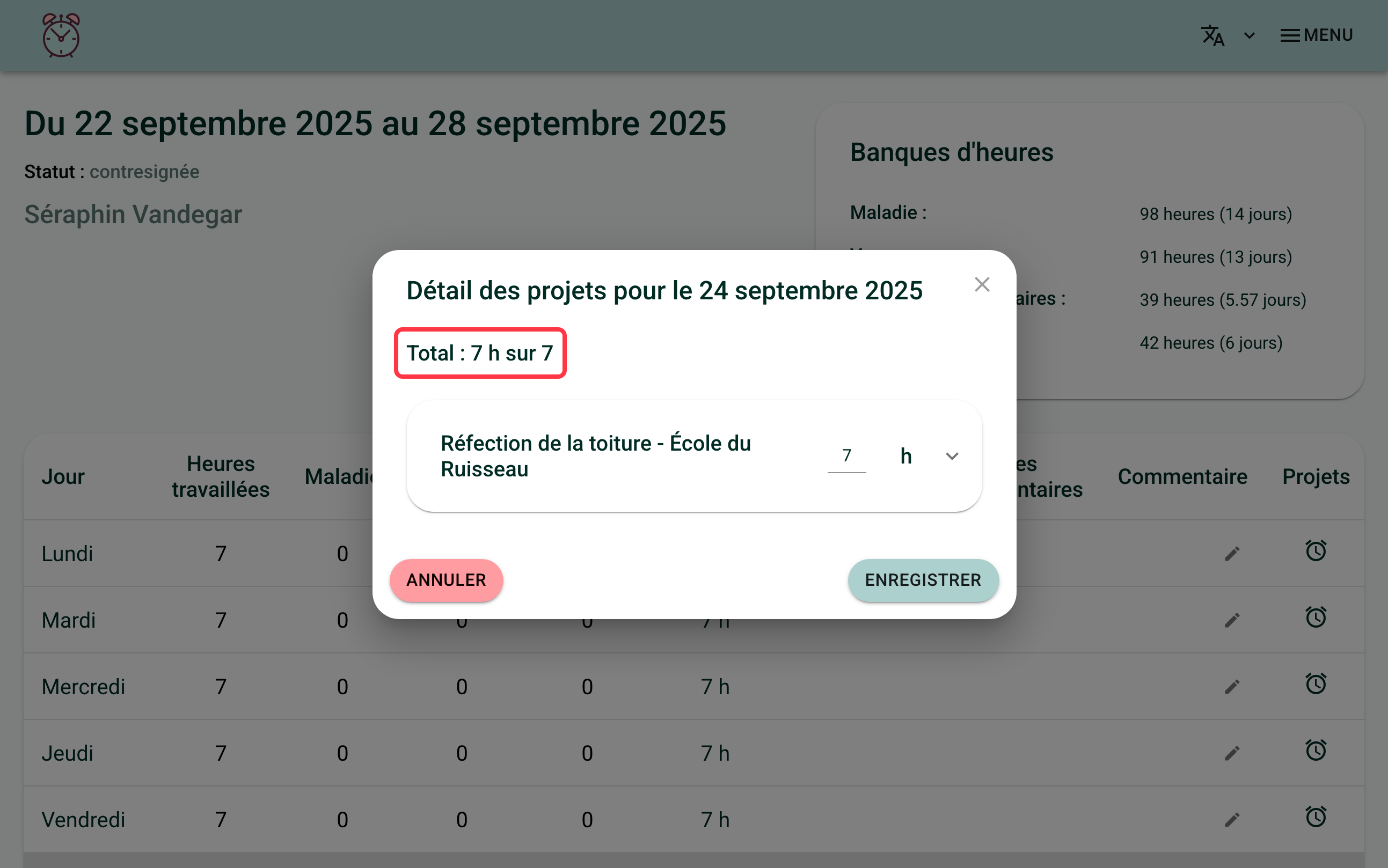
Click "Save": your breakdown is saved right away, there is no need to also save the rest of the timesheet.
For half hours and quarter hours, use a decimal point or comma, the same as for worked hours.
What if the Total Does Not Match the Worked Hours?
The total project hours can never be higher than the worked hours for the day. If you go over, a red message appears ("Total project hours cannot be higher than worked hours for this day.") and the "Save" button stays disabled until you fix it.
In some organizations, this breakdown is mandatory: the icon turns green once the total exactly matches the worked hours for the day, and stays red until it does. If that is not the case where you work, a partial or incomplete breakdown is still accepted.
What if a Project Is Split into Activities?
For some projects, your organization has set up a finer breakdown by activity (for example, several types of work on the same site). Nothing tells you in advance: the arrow on the right of the card is the same for every project, whether it has activities or not. Expand the card to find out.
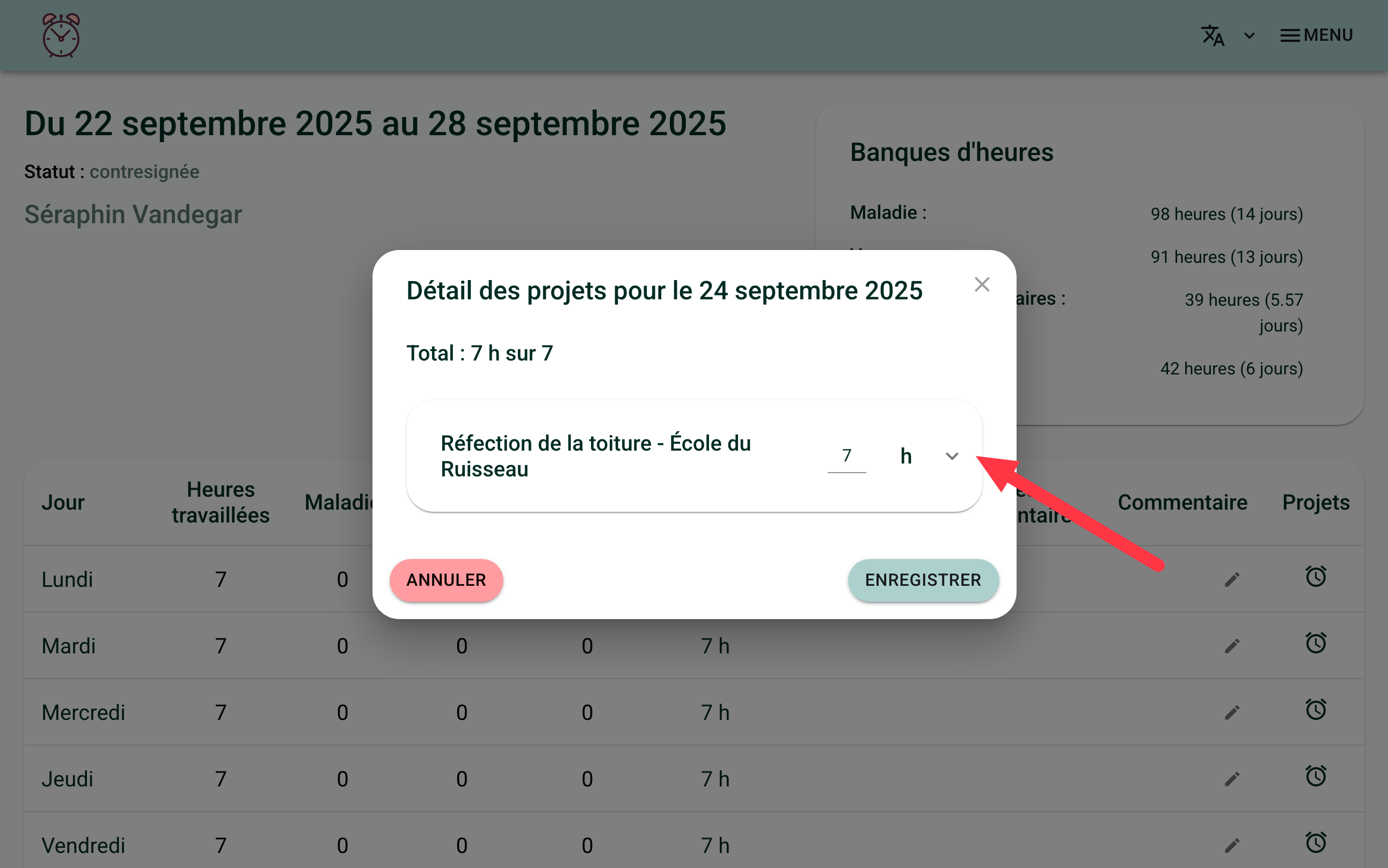
If the project has activities, the expanded card shows the "Detail for this project", with an hours field for each one.
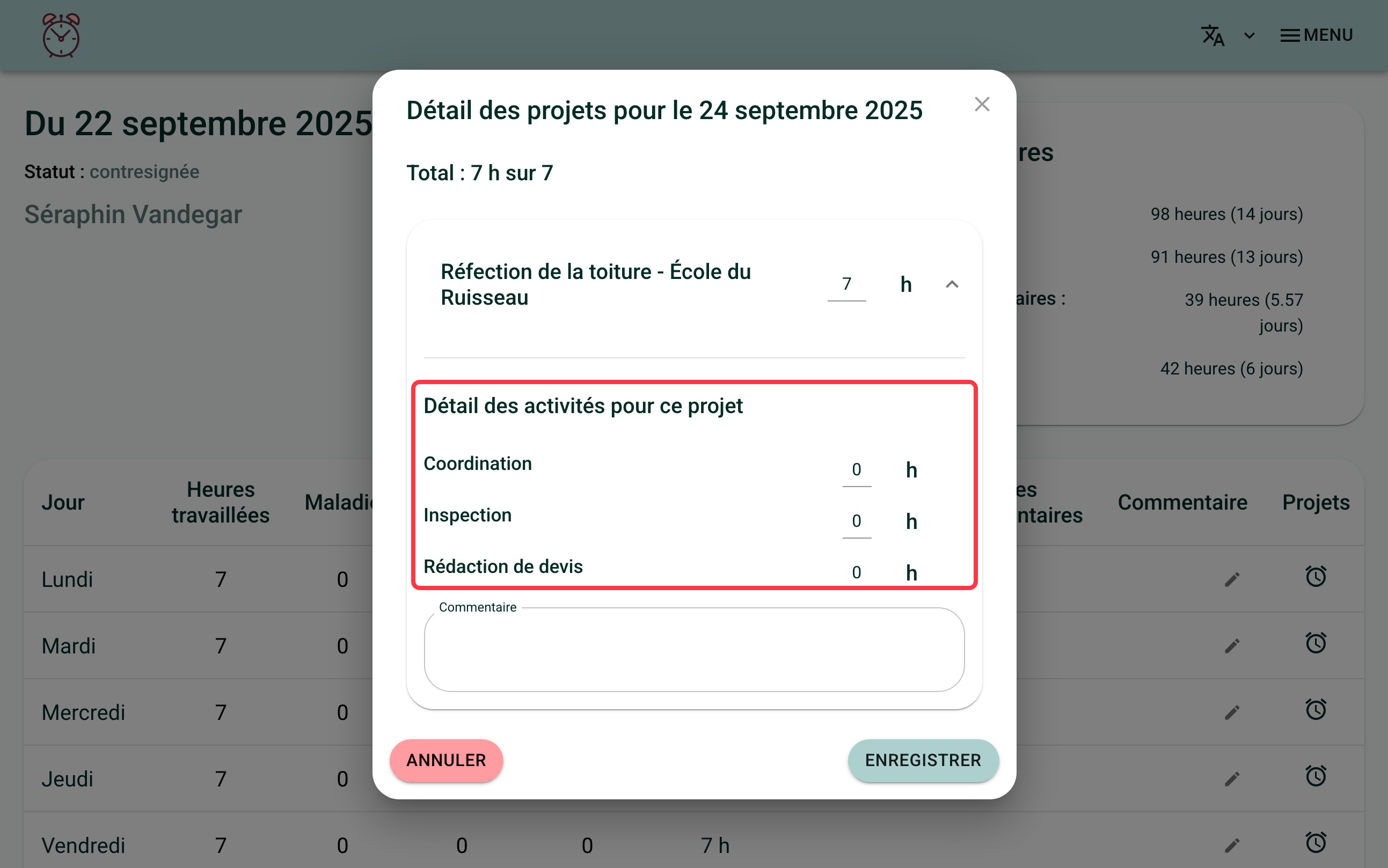
This detail is separate from the total entered at the top of the project's card: filling in the activities does not automatically update that total. Remember to enter both, otherwise the project report your manager relies on will show 0 hours for that project, even if the activity breakdown is filled in.
You can also add a note to a project: expand its card, the "Note" field is under the hours.
If you need help with this, write to us at support@feuilledetemps.ca.